A small, self-hosted ChatGPT-like web interface written in Go with document context (RAG), connected to Azure OpenAI-compatible deployments, with an optional identity-backed Microsoft Foundry deployment inventory.
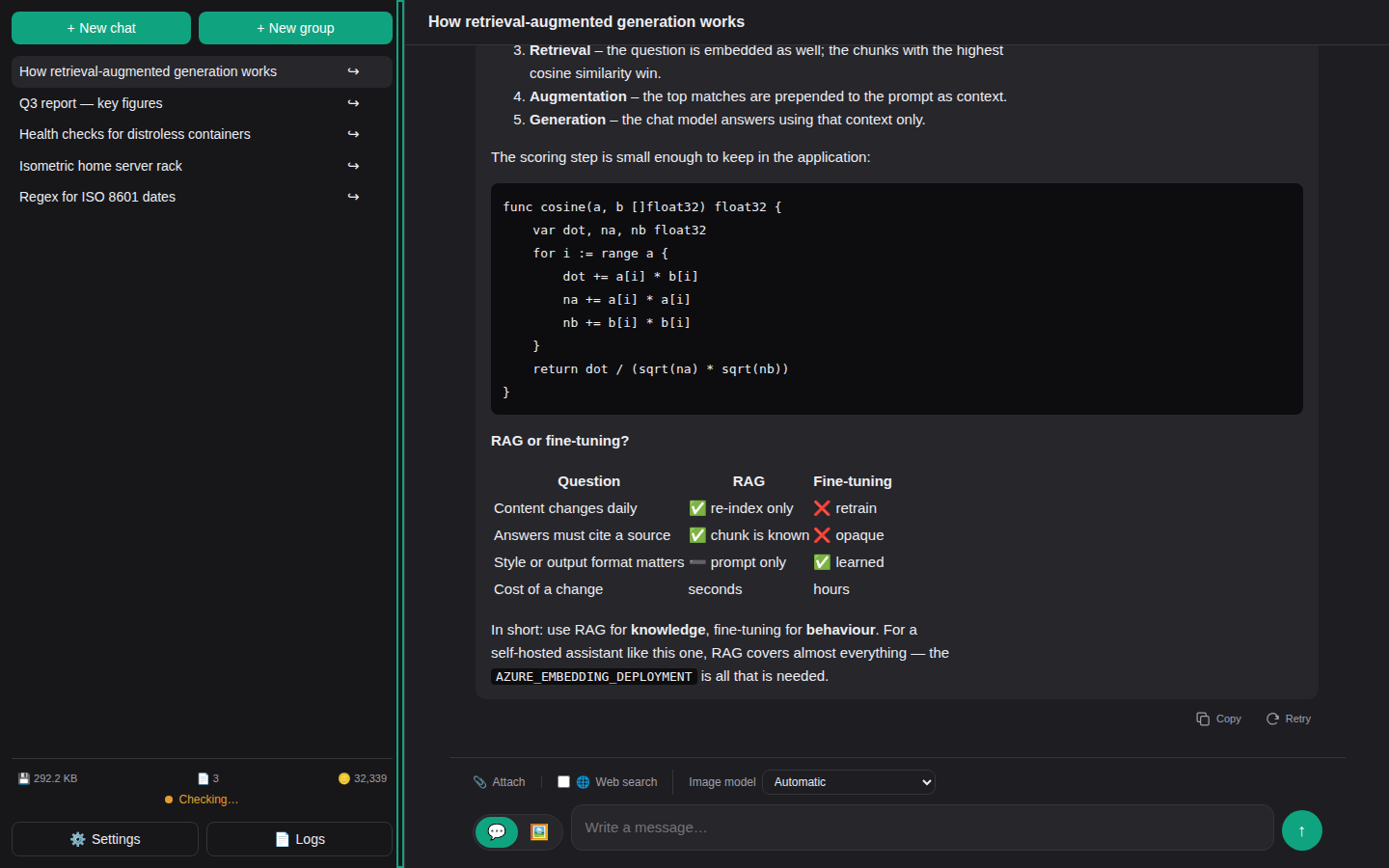
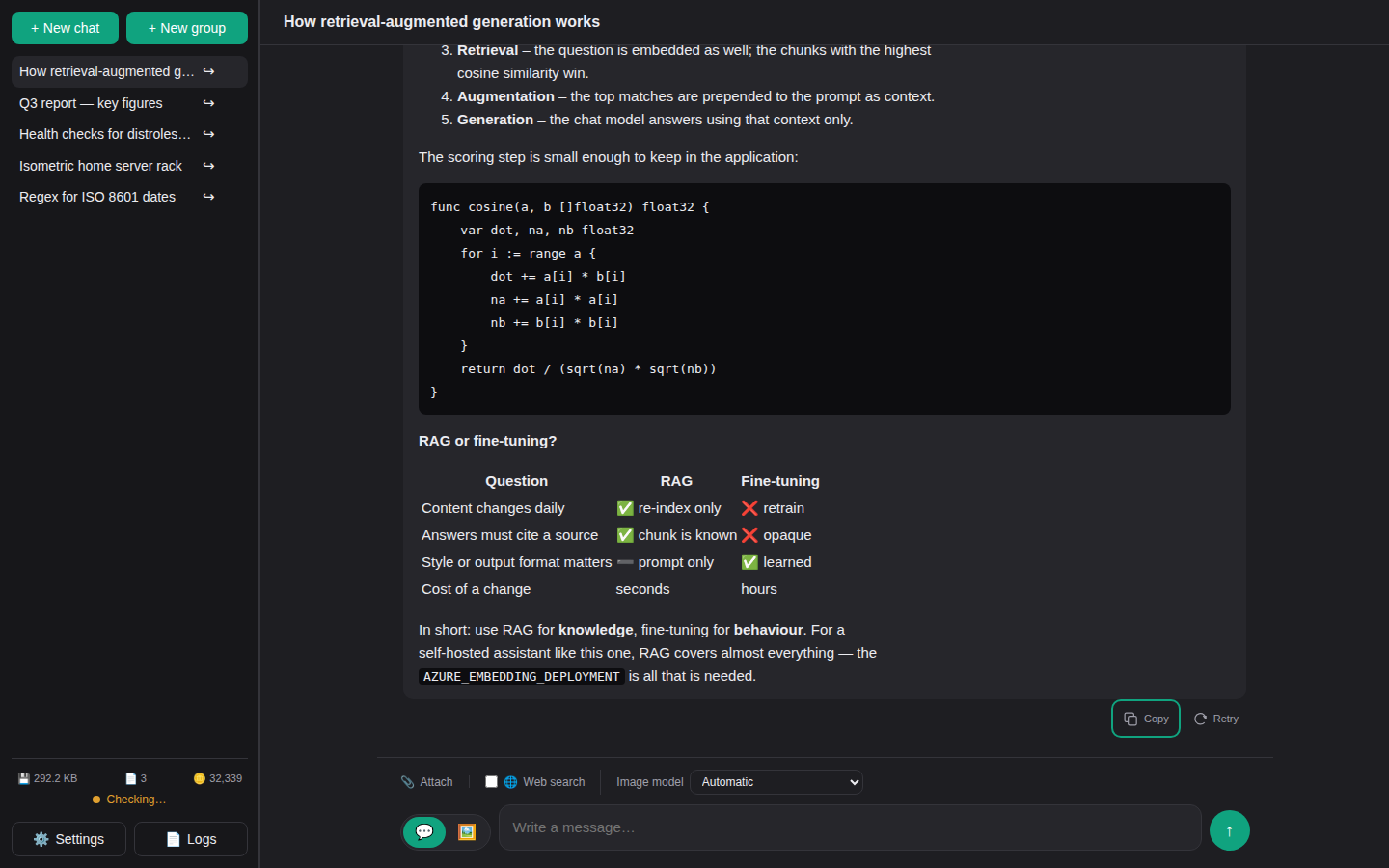
Chat interface with a drag-resizable sidebar, multiple conversations and
history; the desktop width is saved per browser
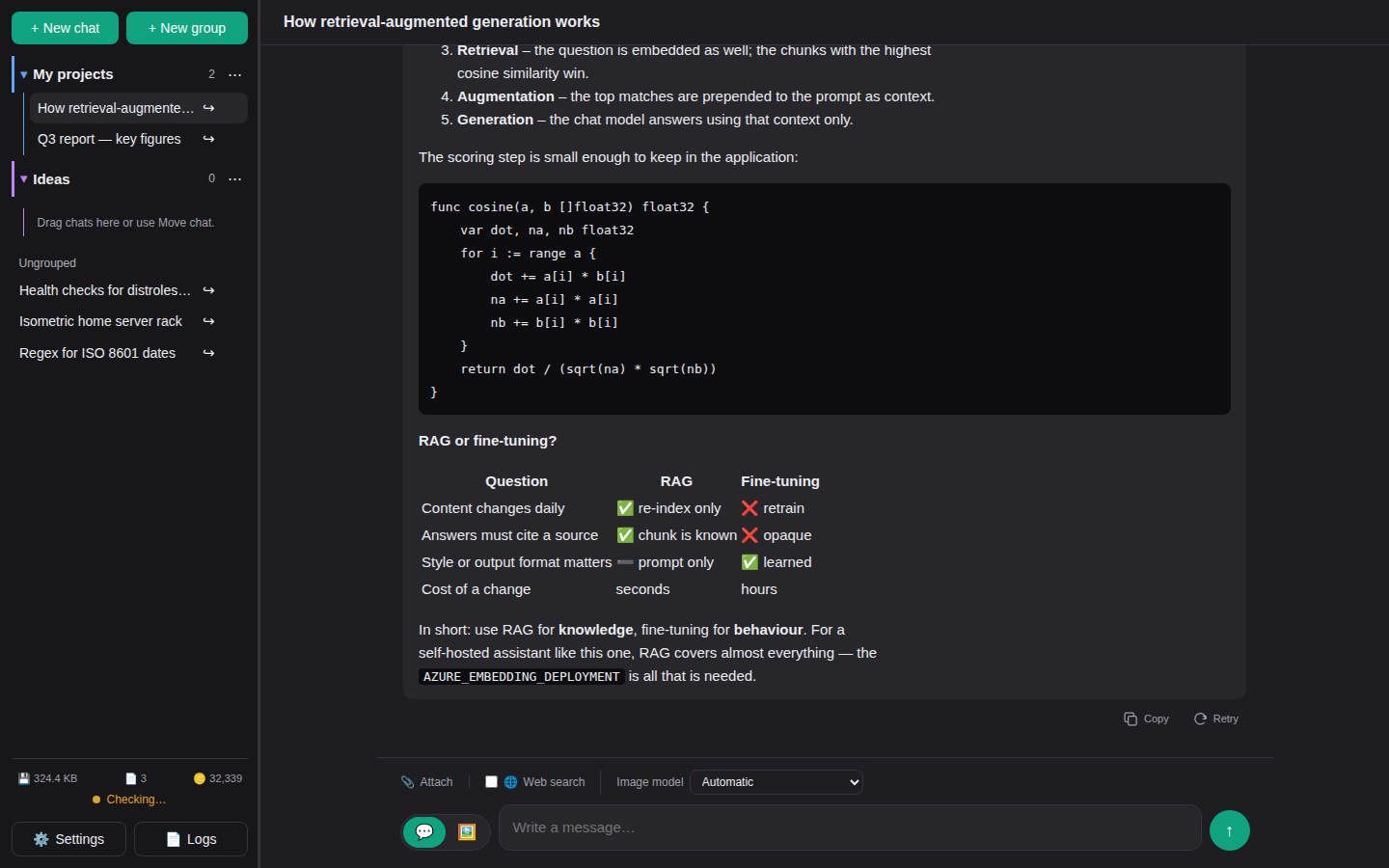
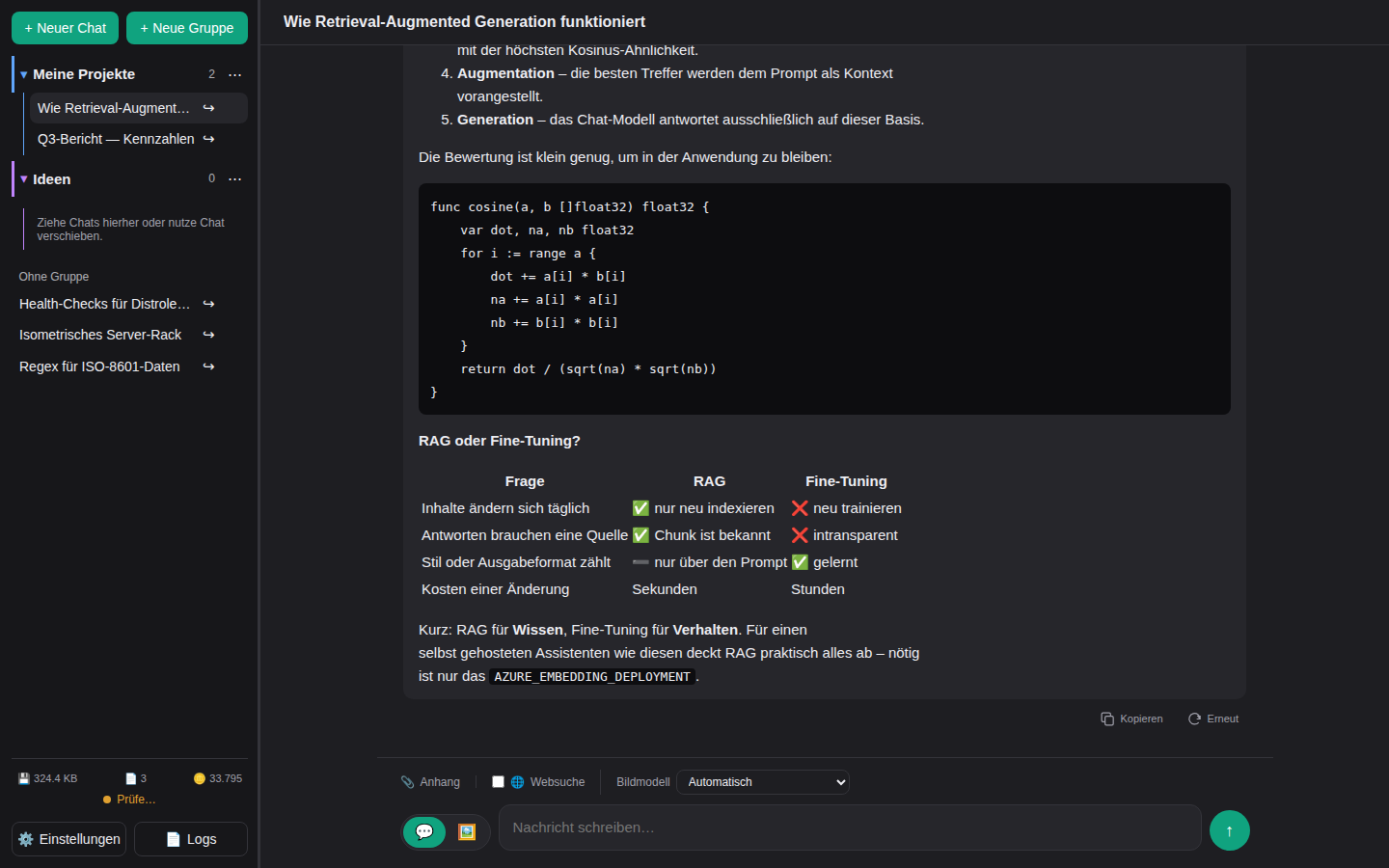
Single-level named chat groups with optional colors, persistent collapse
state, drag-and-drop movement and a keyboard/touch-accessible Move action
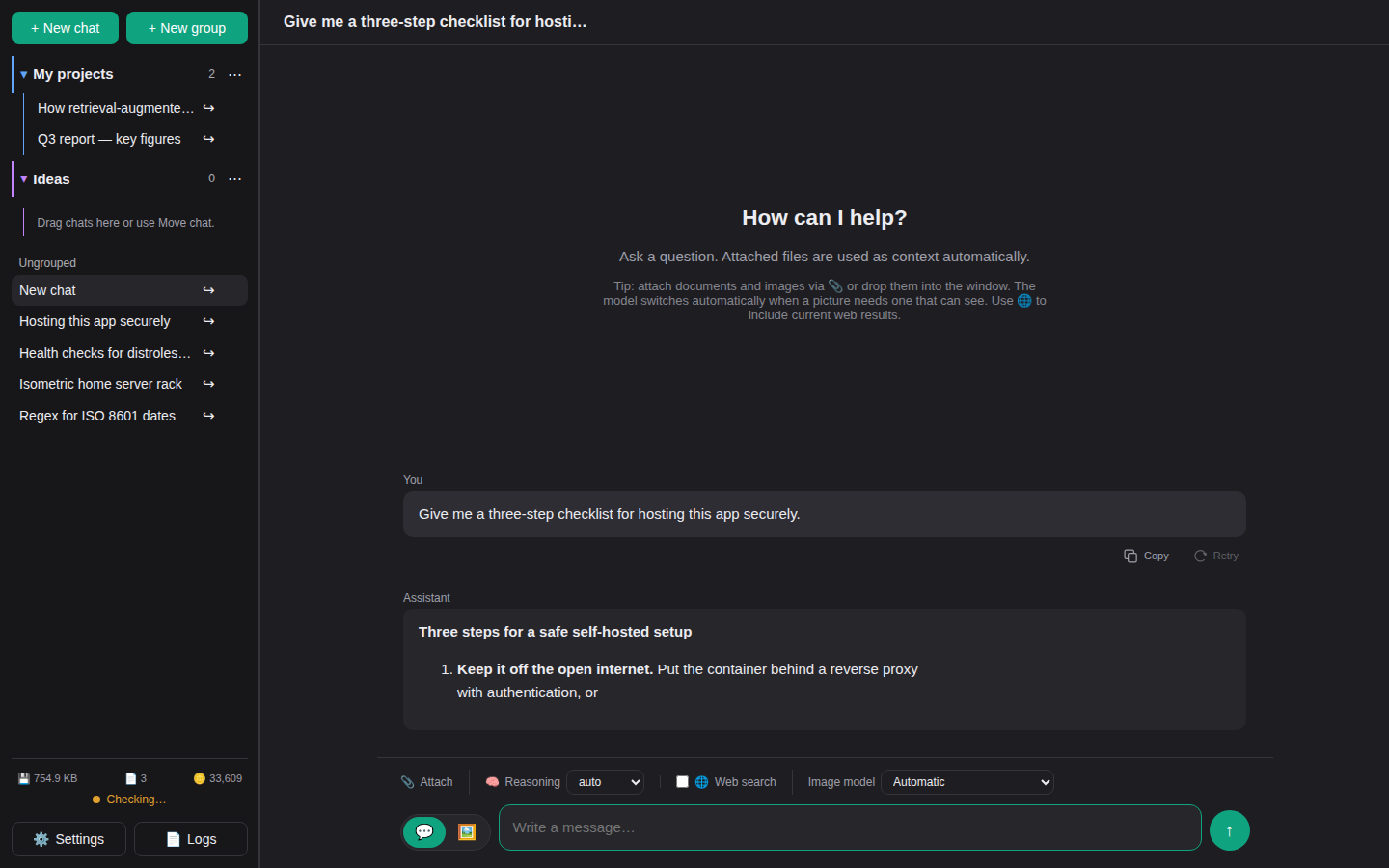
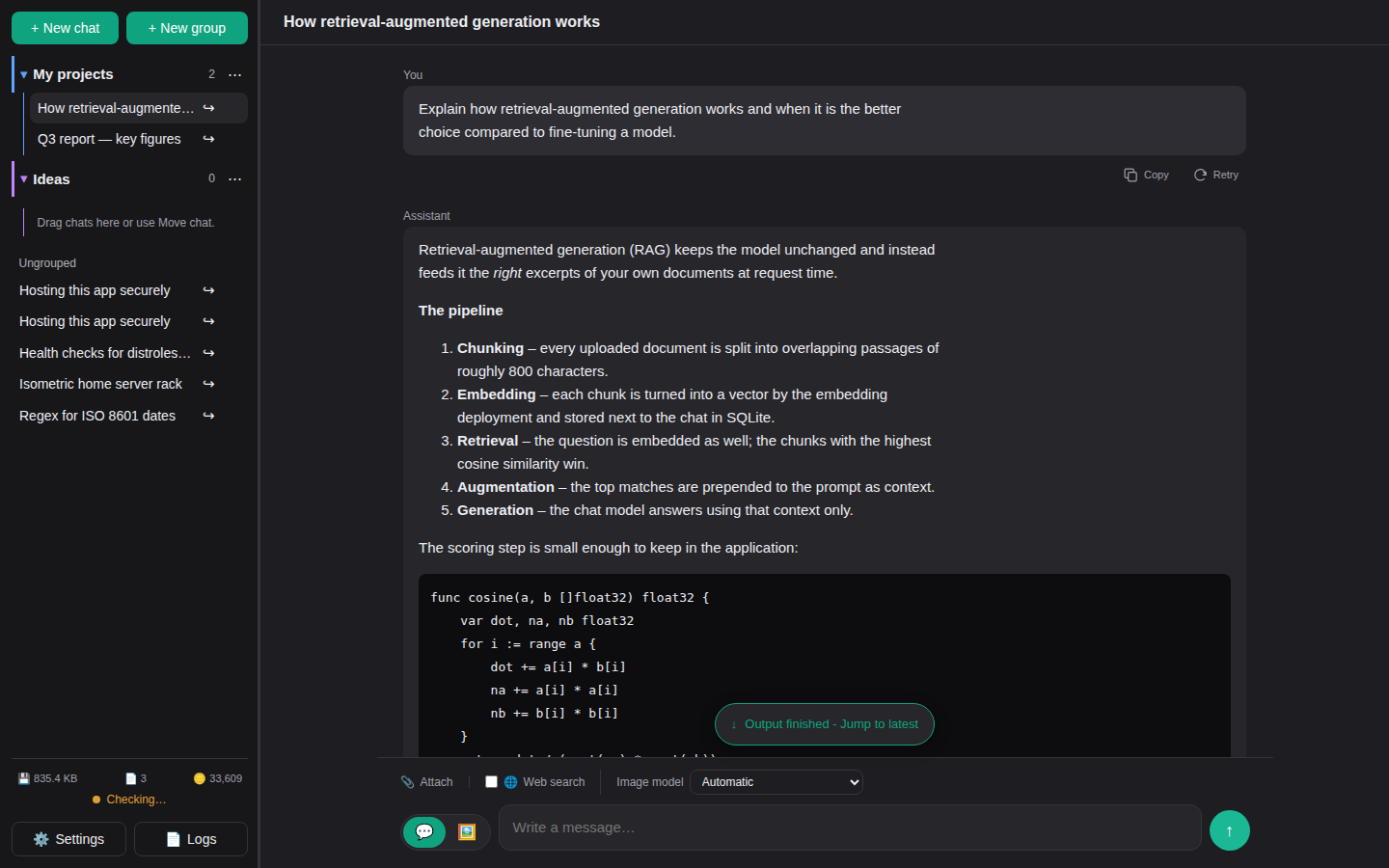
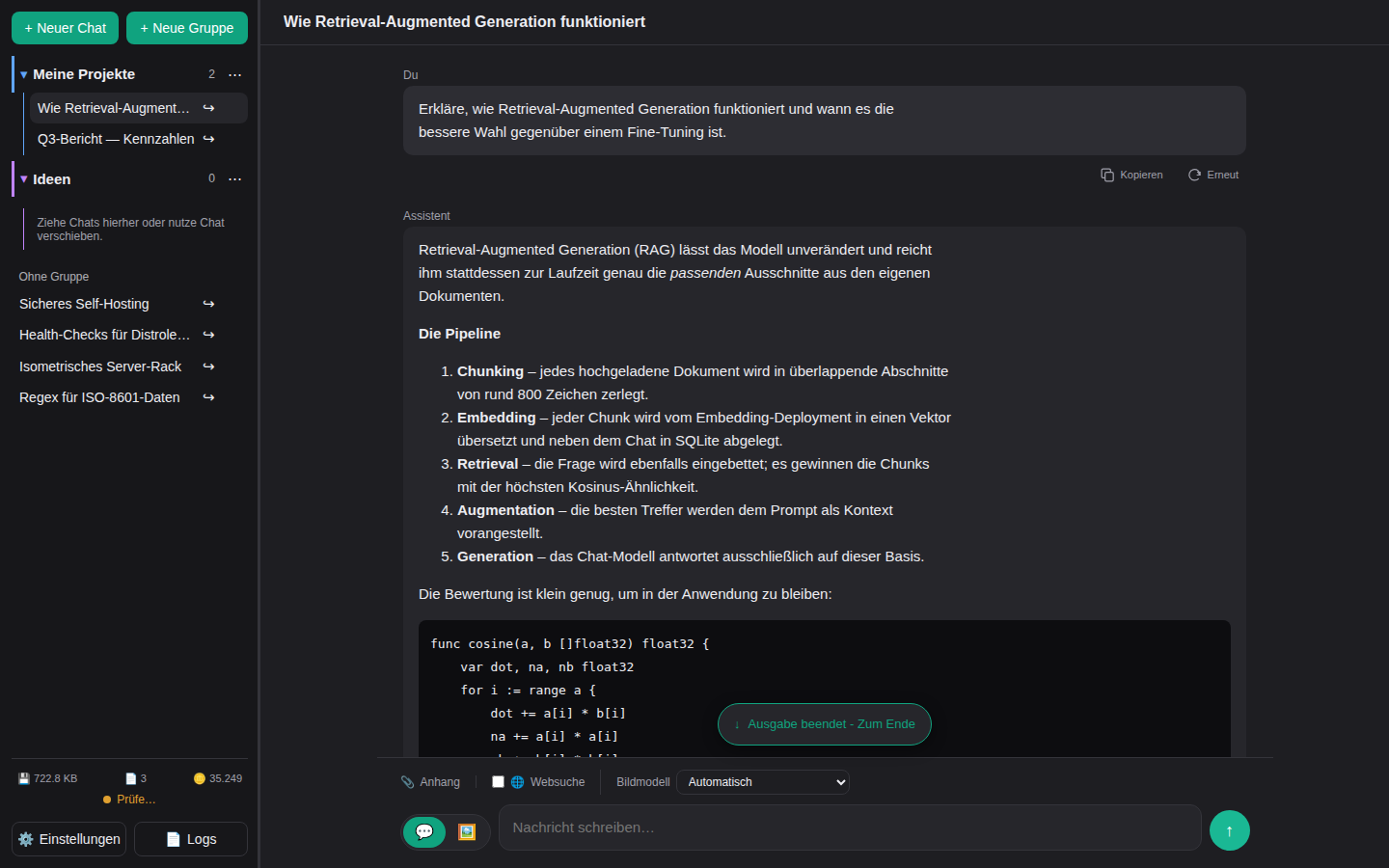
Answer streaming (token by token) via server-sent events
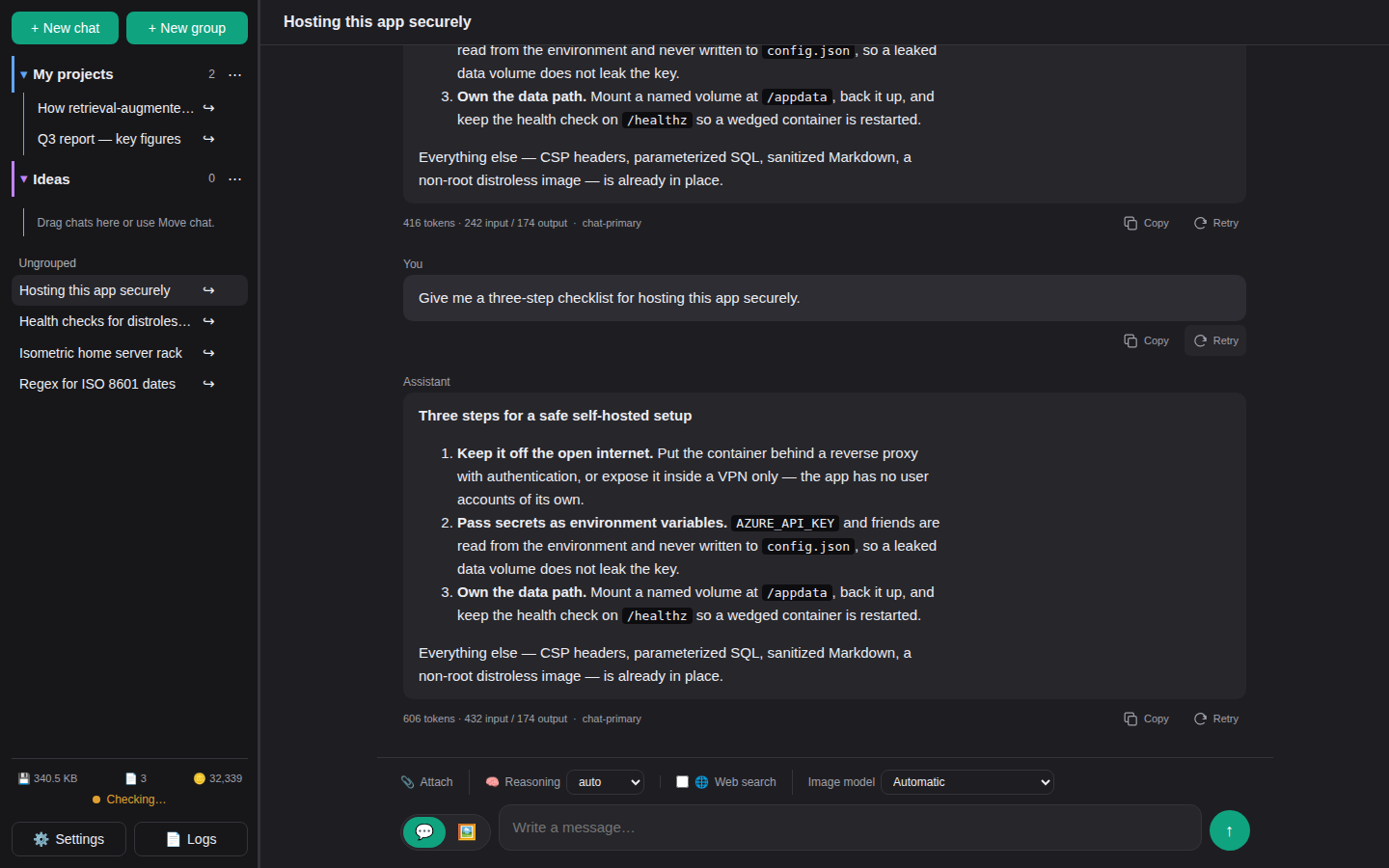
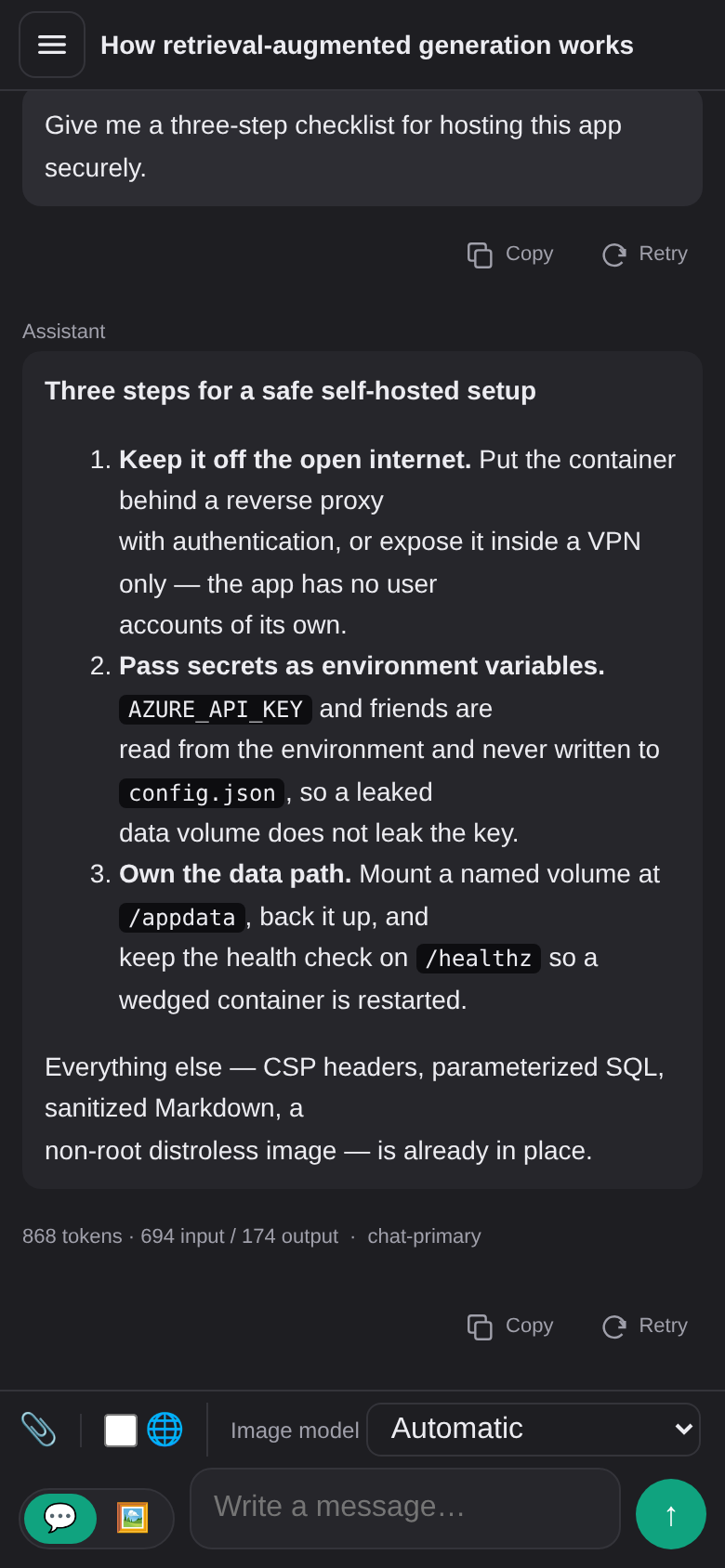
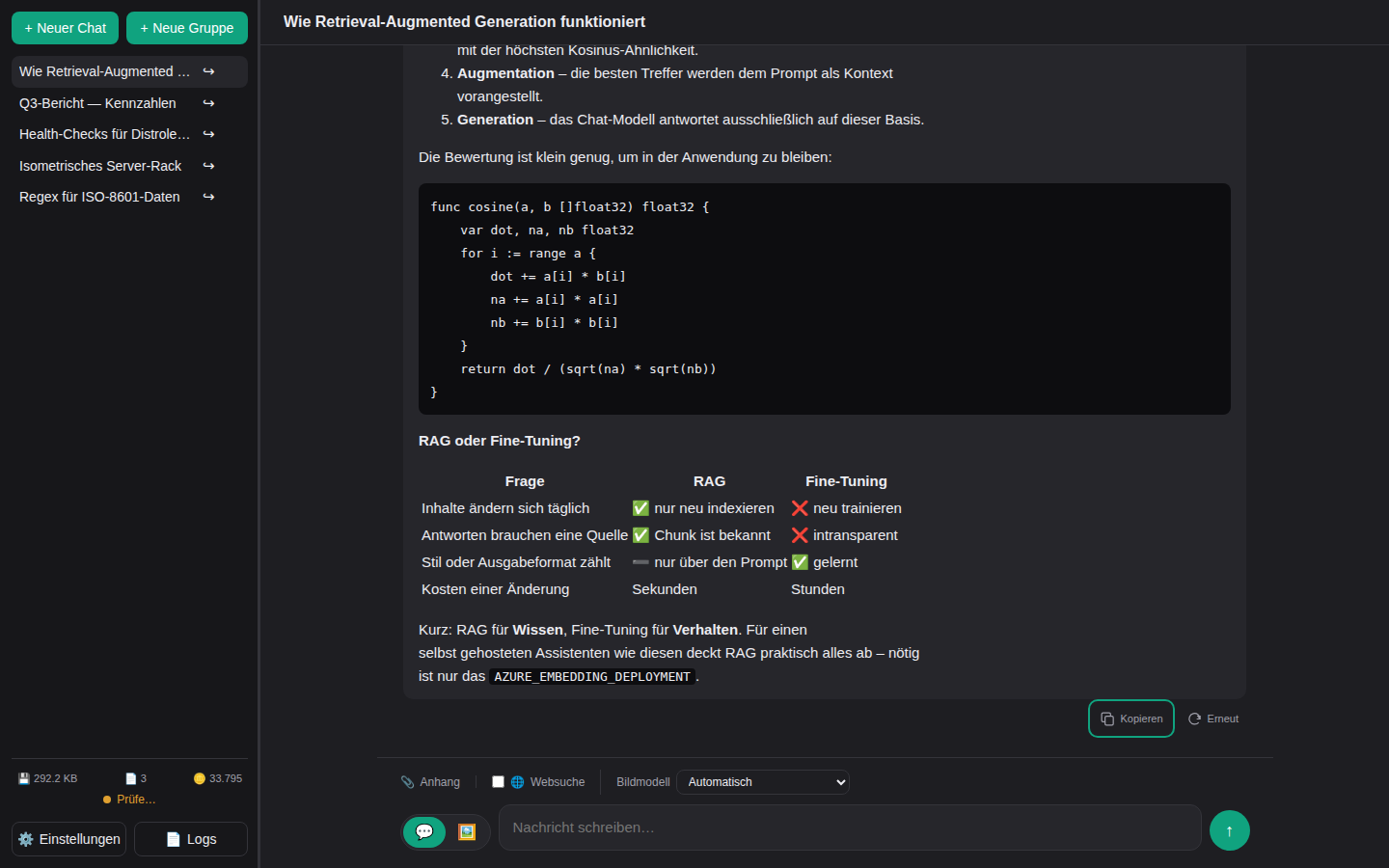
A copy icon below every input and completed answer copies the full message with
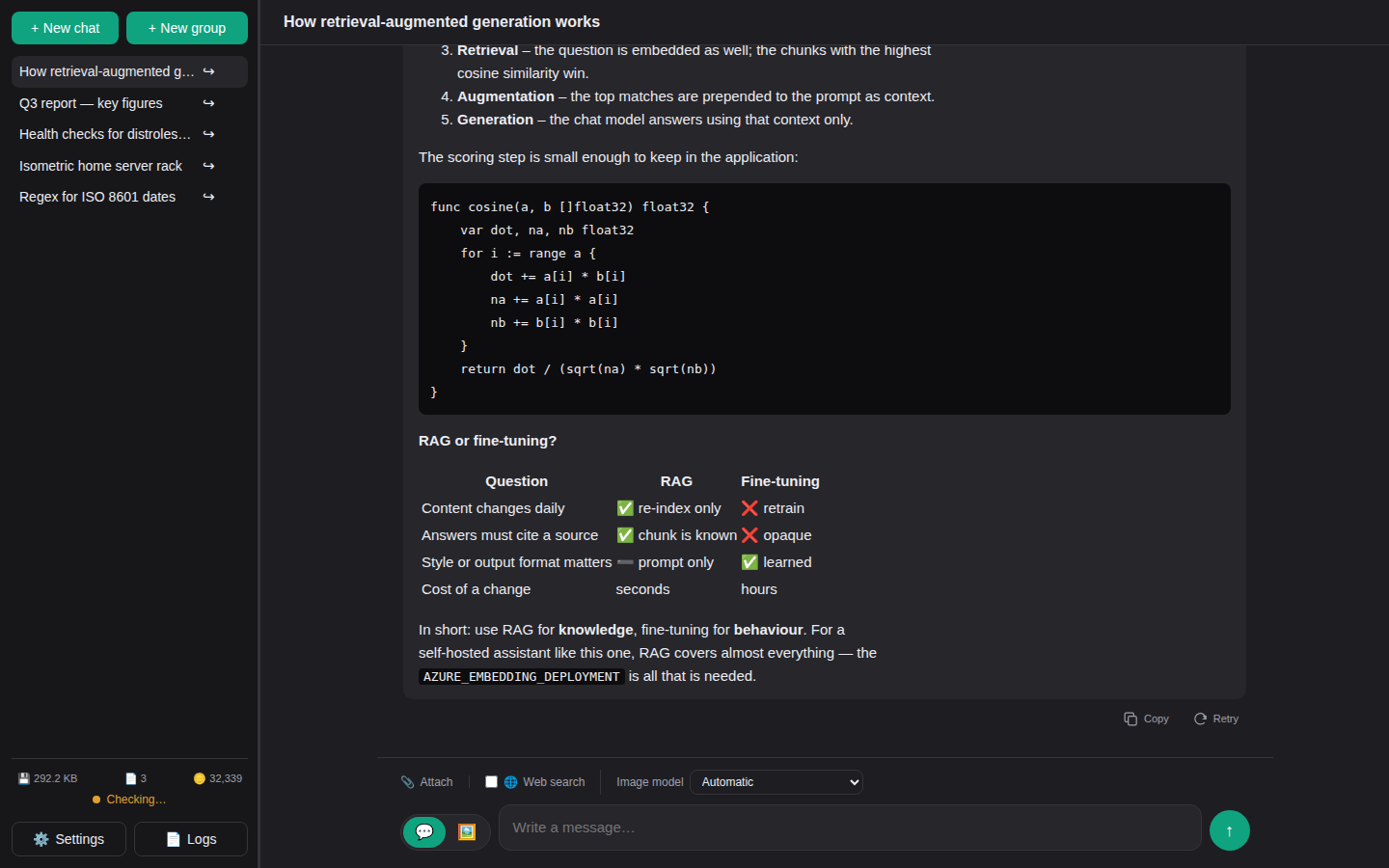
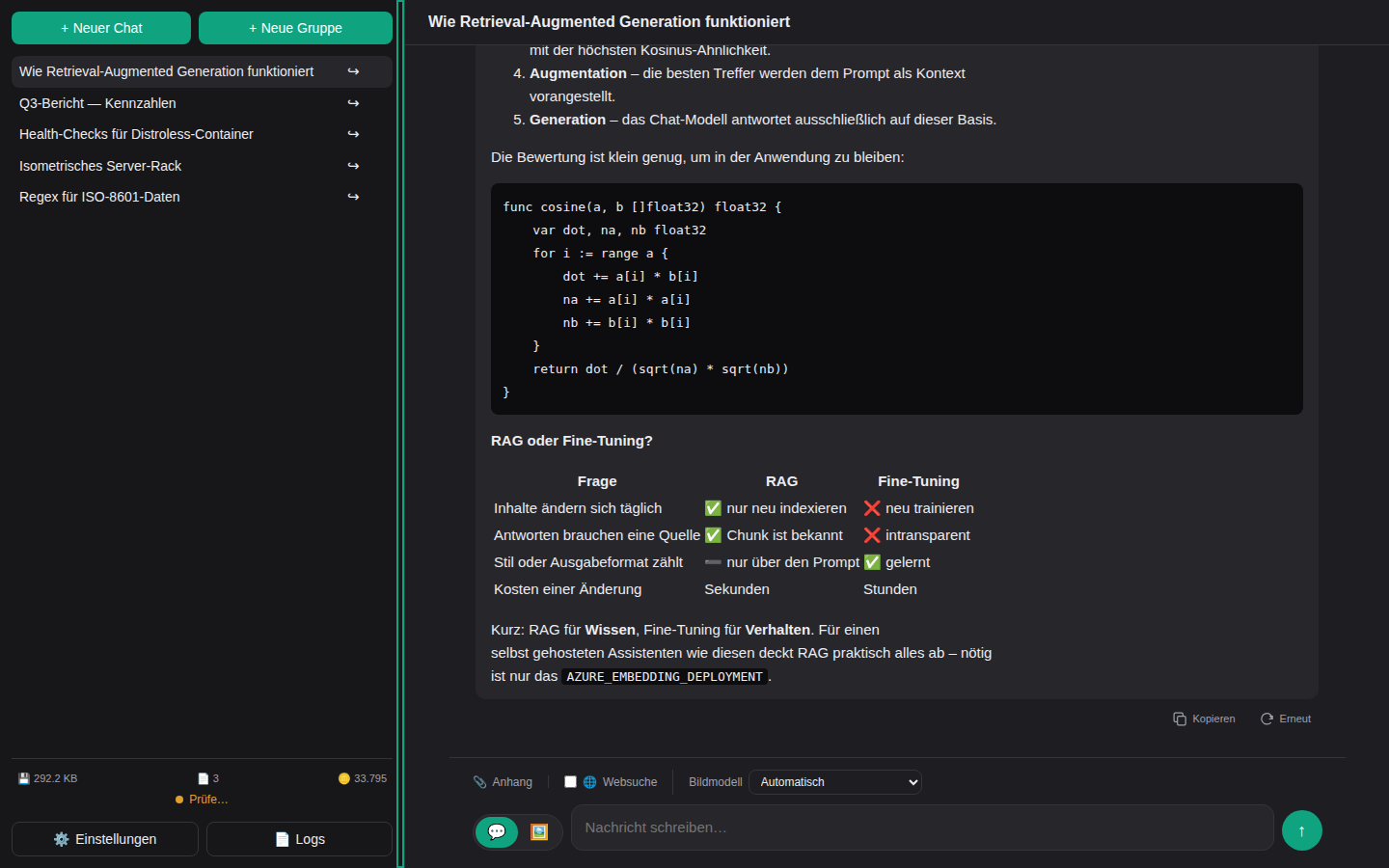
rich formatting (headings, emphasis, lists, tables and code) where supported
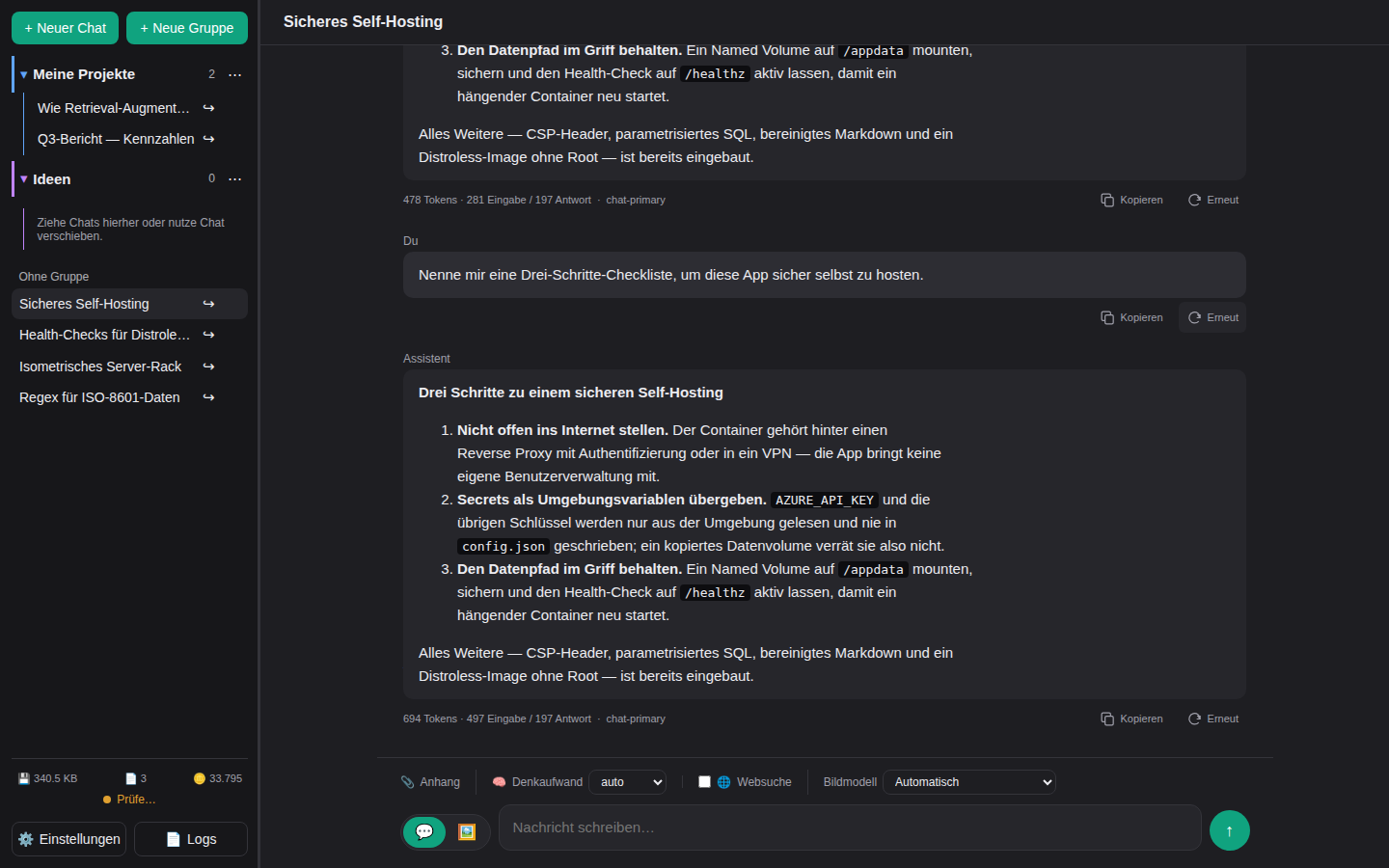
A retry icon beside Copy sends the original question as a new user message
after confirmation, using current history and settings without replacing
earlier messages
Streaming follows the latest output only while you stay at the bottom.
Scrolling up preserves your reading position; a jump-to-latest control shows
whether the response is still running, reconnecting, or has finished
Model configuration stays in Settings rather than a selector in the chat
header. The footer alongside token usage identifies the model that actually
replied, using the same typography. Existing per-chat model selections are preserved
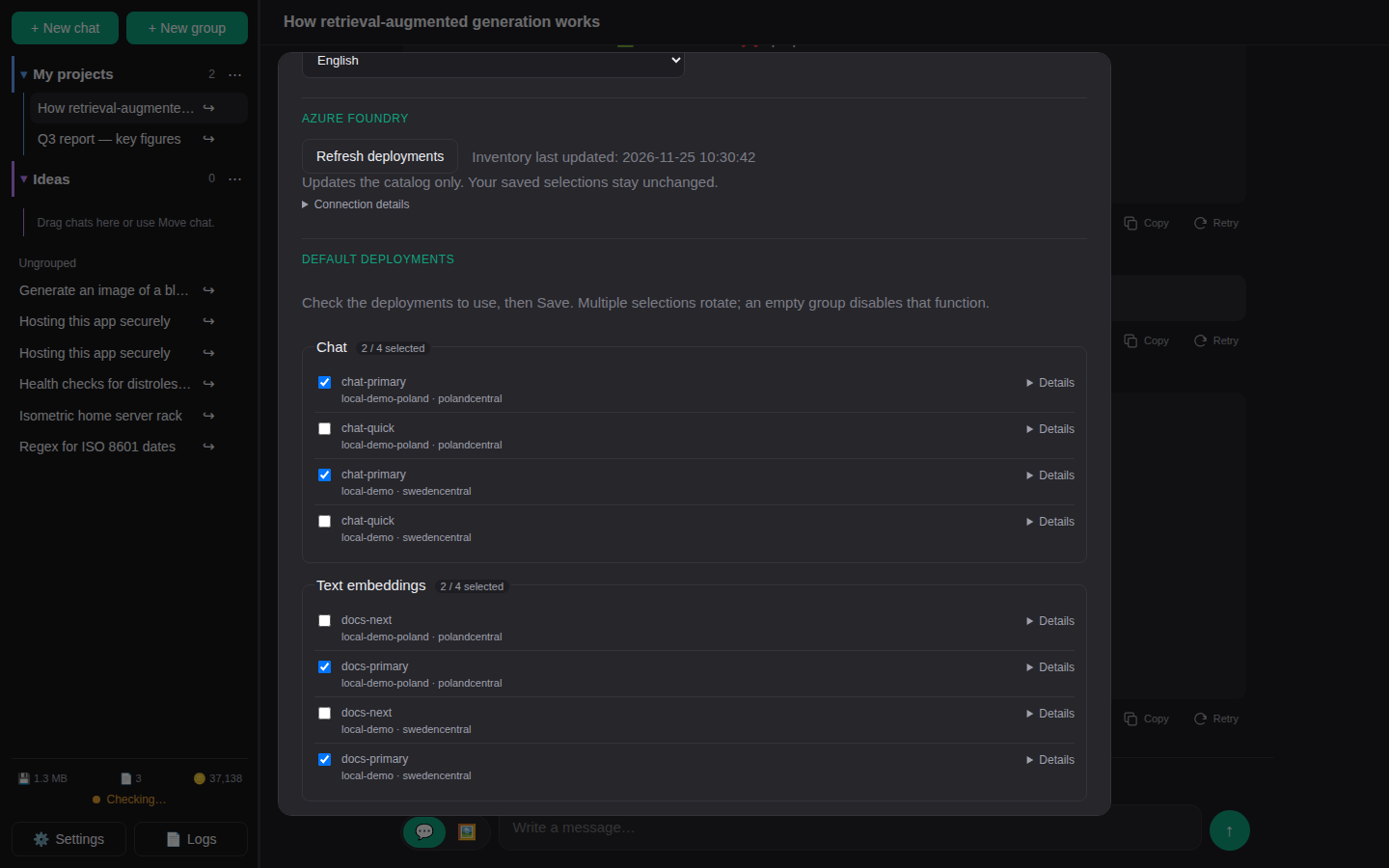
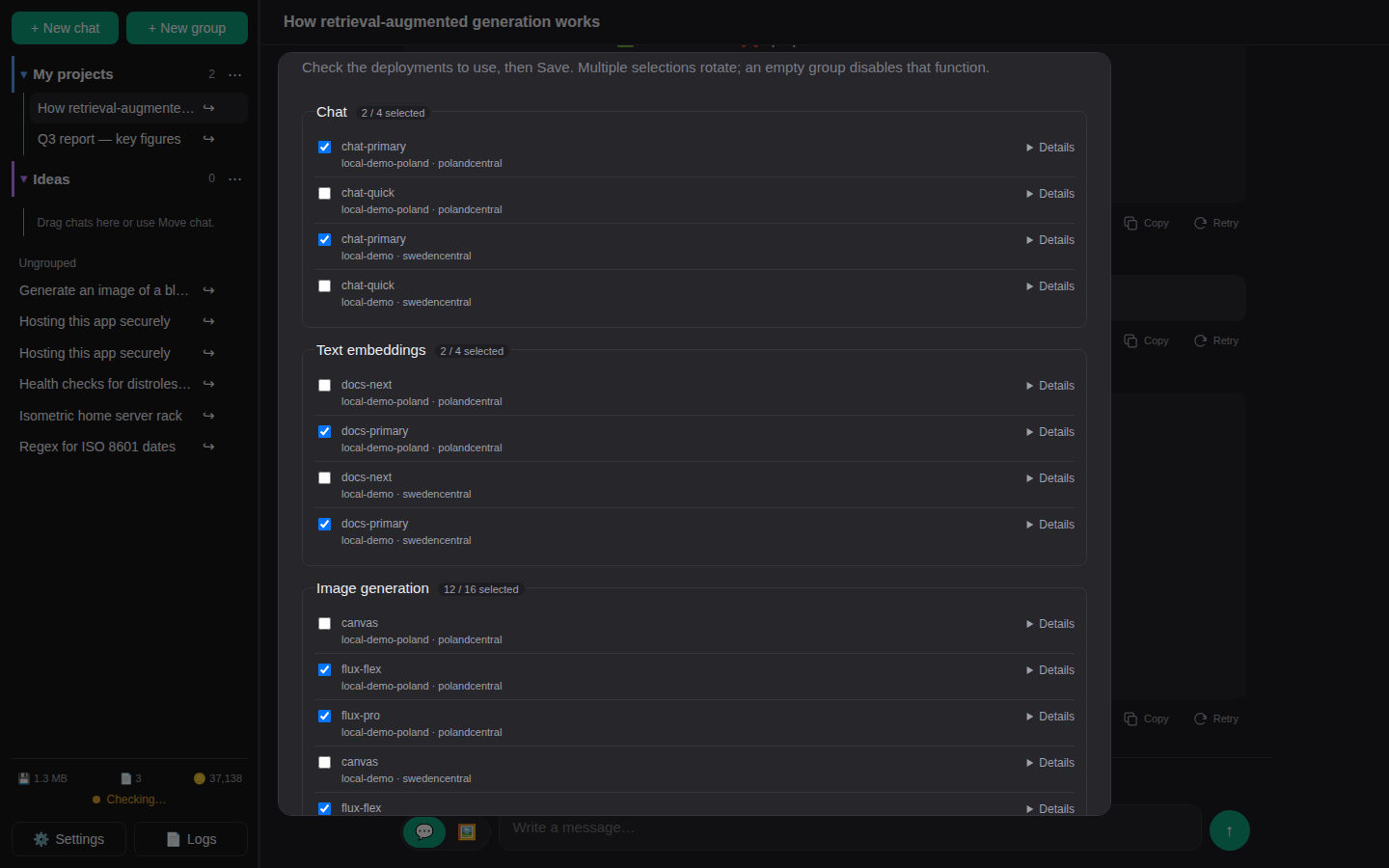
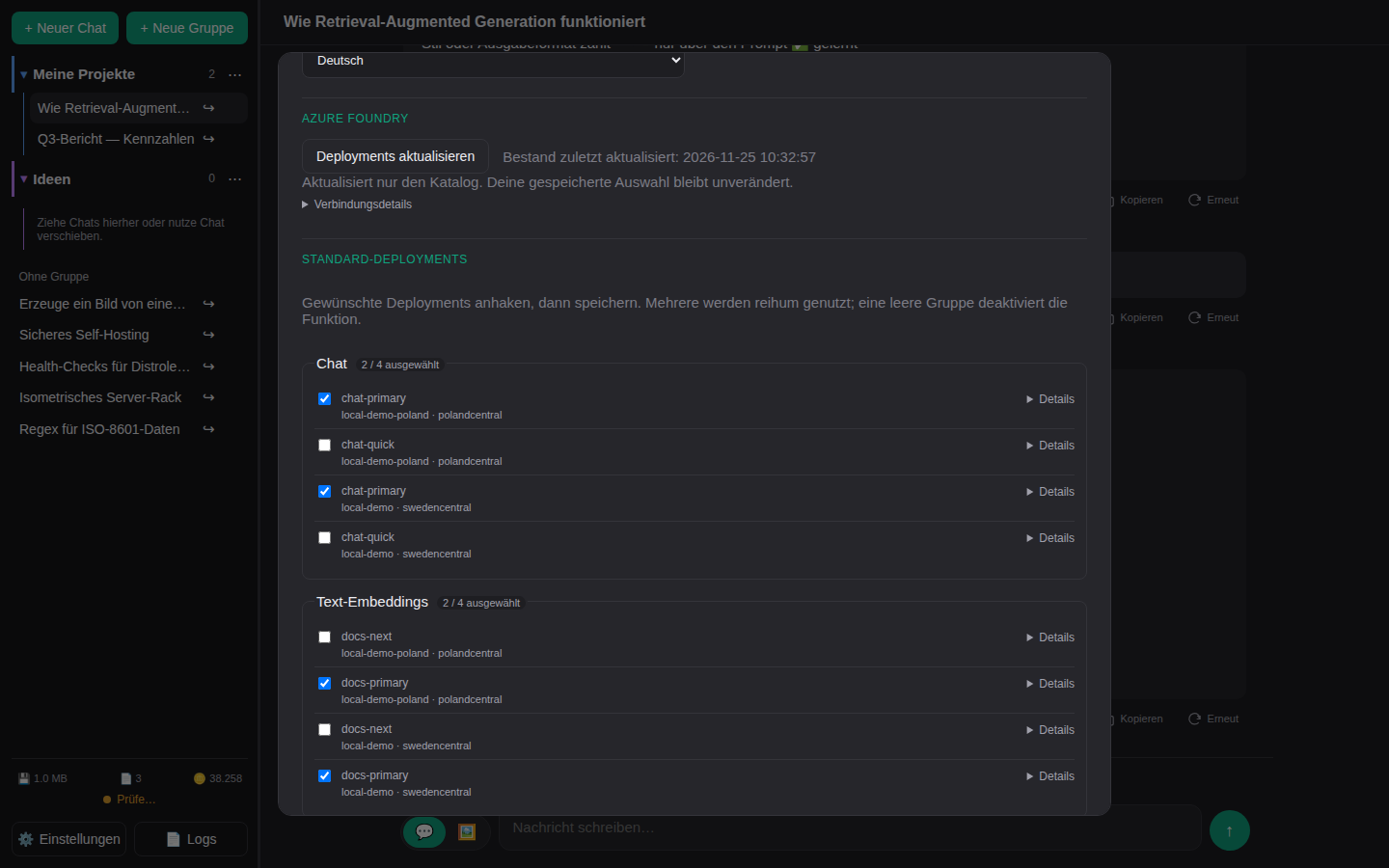
Optional Foundry inventory with metadata-only Refresh and separate defaults
for chat, embeddings, images and vision. Deployment aliases are mapped to
canonical model metadata; unsupported deployments remain visible
Reasoning effort selectable per chat next to the input field; the offered
values follow the selected model
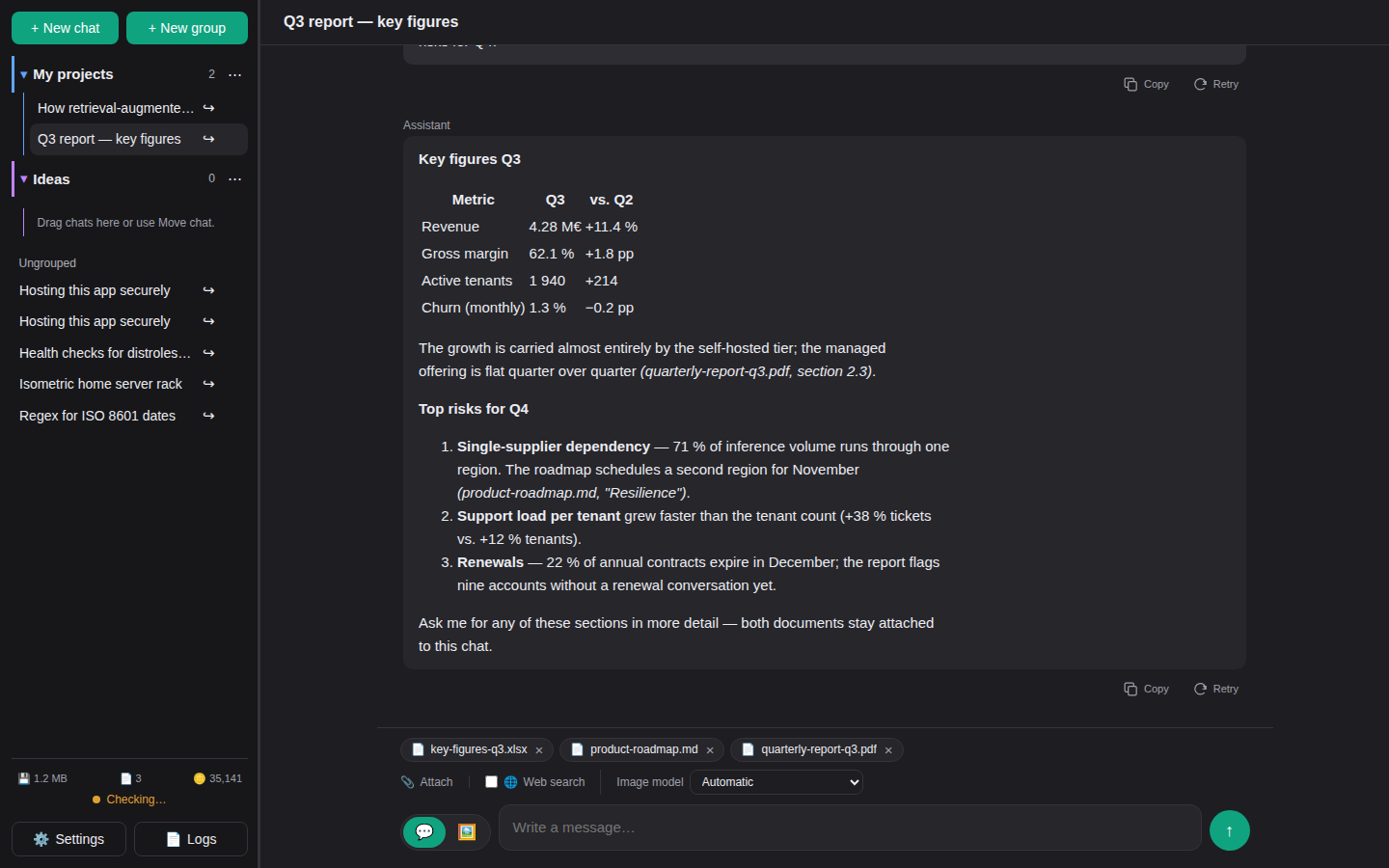
Document upload as RAG context (embeddings + brute-force cosine search).
PDF (layout aware: lines and columns survive), Word (.docx, including
tables, headers, footers and footnotes - tracked deletions and field codes are
left out), Excel (.xlsx, sheet by sheet as tab separated rows),
PowerPoint (.pptx, slides plus speaker notes), RTF, HTML/XML,
Markdown, CSV, JSON, YAML and source code. Anything else that is textual is
recognized by its content, so a file without a useful name or type still works
Scanned PDFs are read automatically: a PDF without a text layer has its
pages transcribed by the vision model, one request per page, and the transcript
is embedded like any other document. The upload notice says which files were
read that way and how many pages, because a transcription can be imperfect in a
way a parsed document is not
Attach files next to the input field (📎) or drag and drop them into the
chat window; attachments are shown as chips above the input. Documents reach
the model as retrieved context sections, attached images are sent along with
the message so a vision capable model can look at them. The names of all
attachments are part of the prompt, so the model knows what it has
The model follows the attachment: a picture attached while a text-only
model is selected is answered by the first vision capable entry of
AZURE_MODELS in manual mode, or the configured vision fallback in Foundry
mode. The switch applies to that one answer without changing the stored
chat model, and the model tag names whoever replied
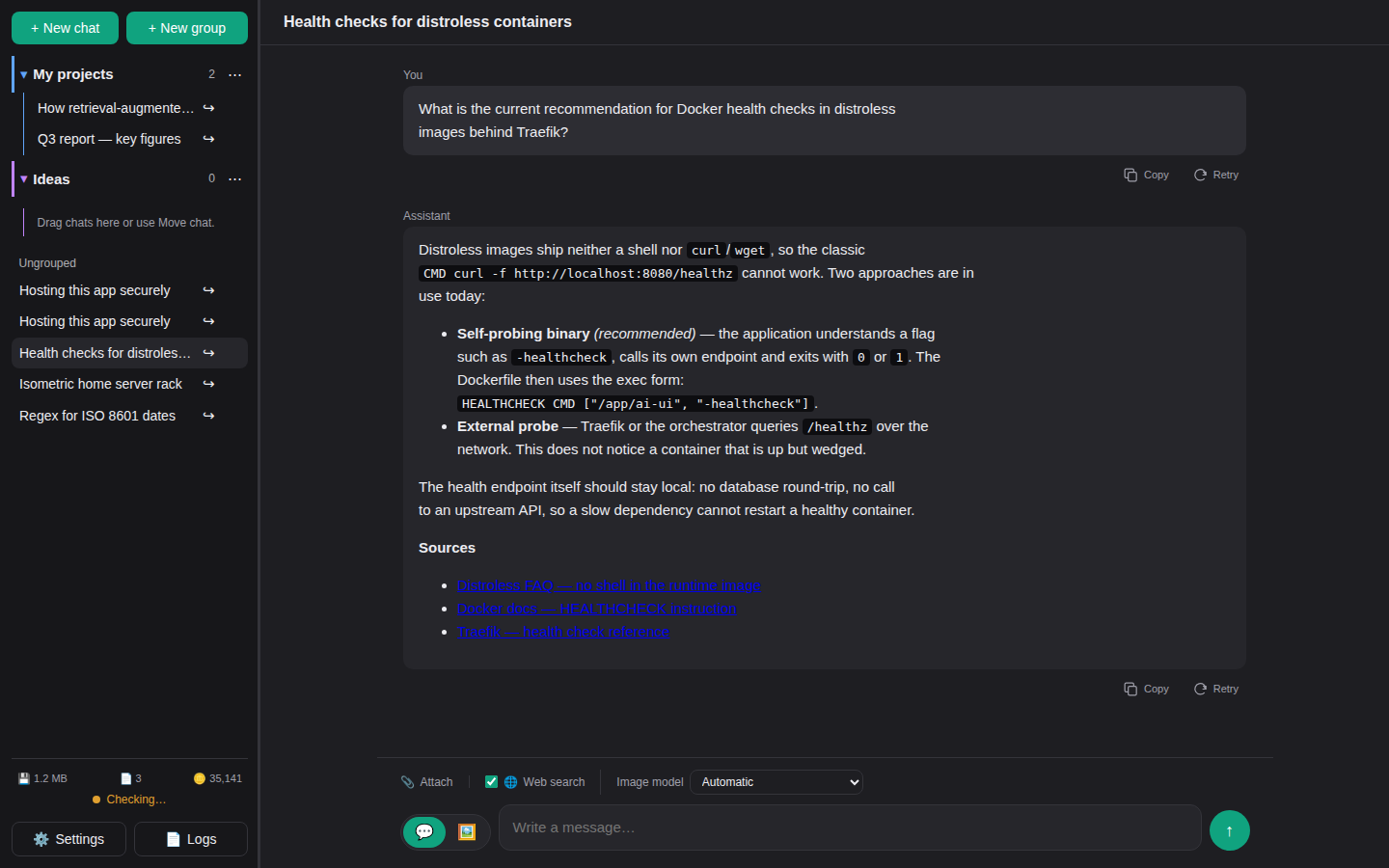
Optional web search (🌐) per request: pulls in current online results as
context - provider agnostic (Tavily, Brave Search, SearXNG)
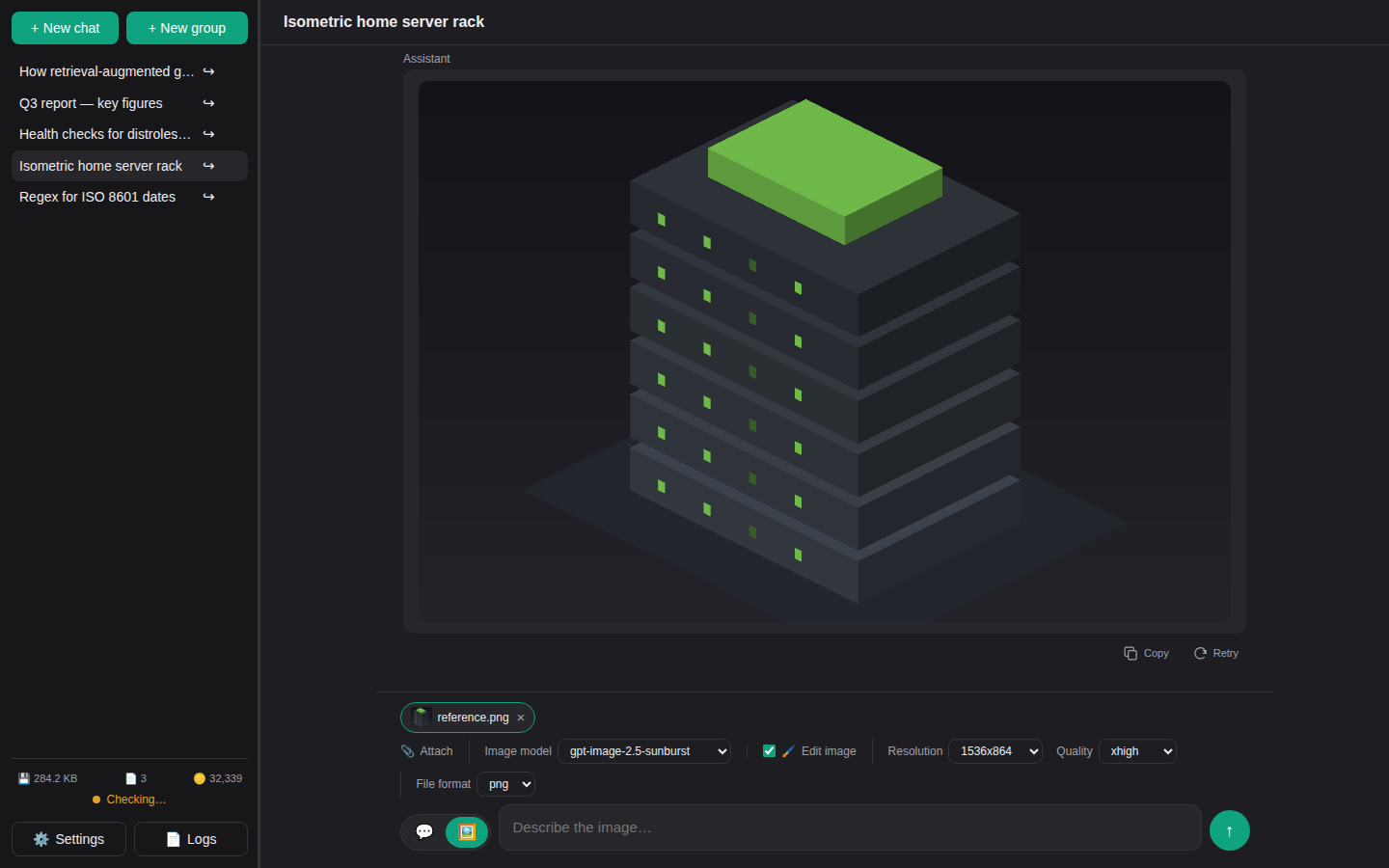
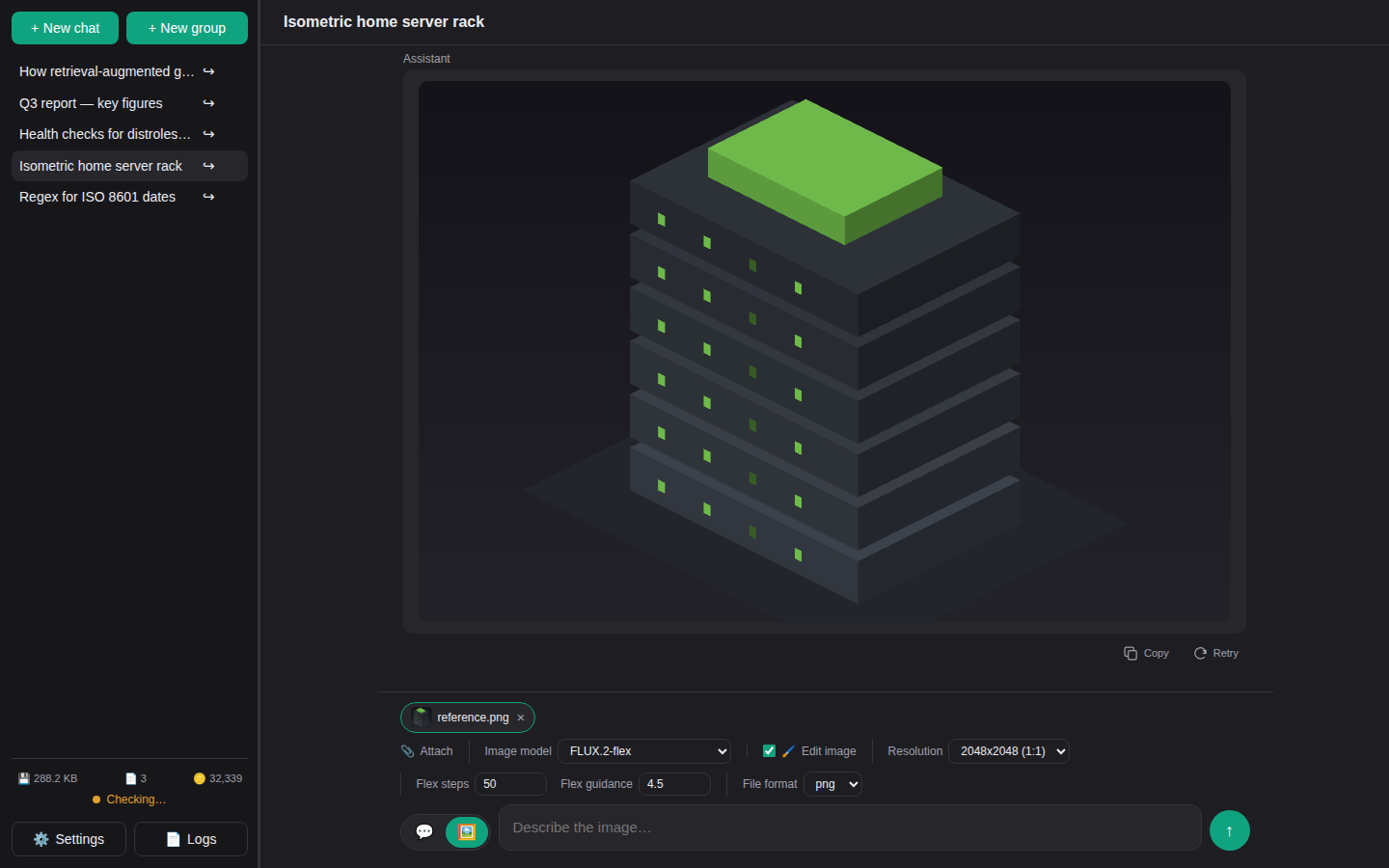
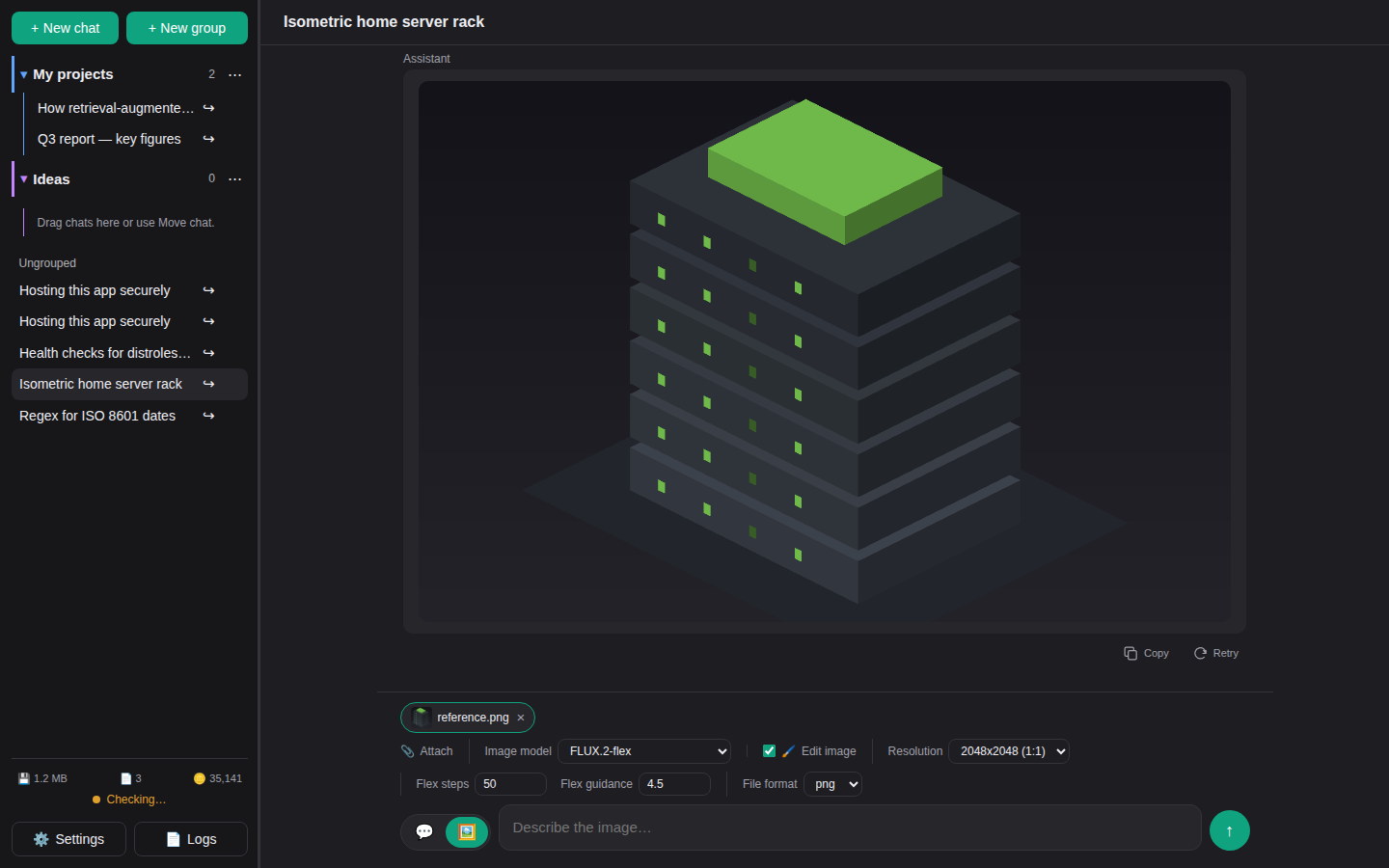
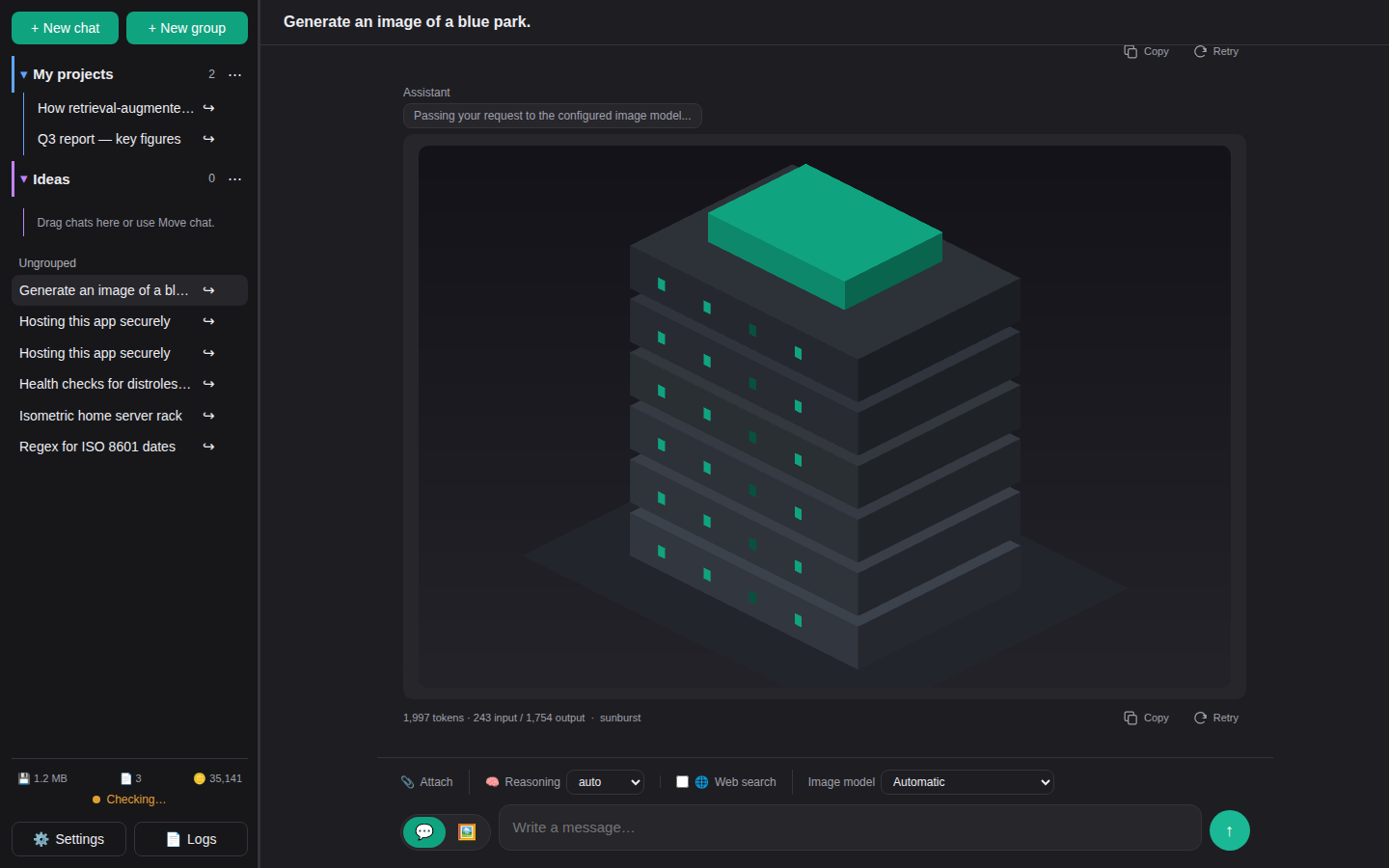
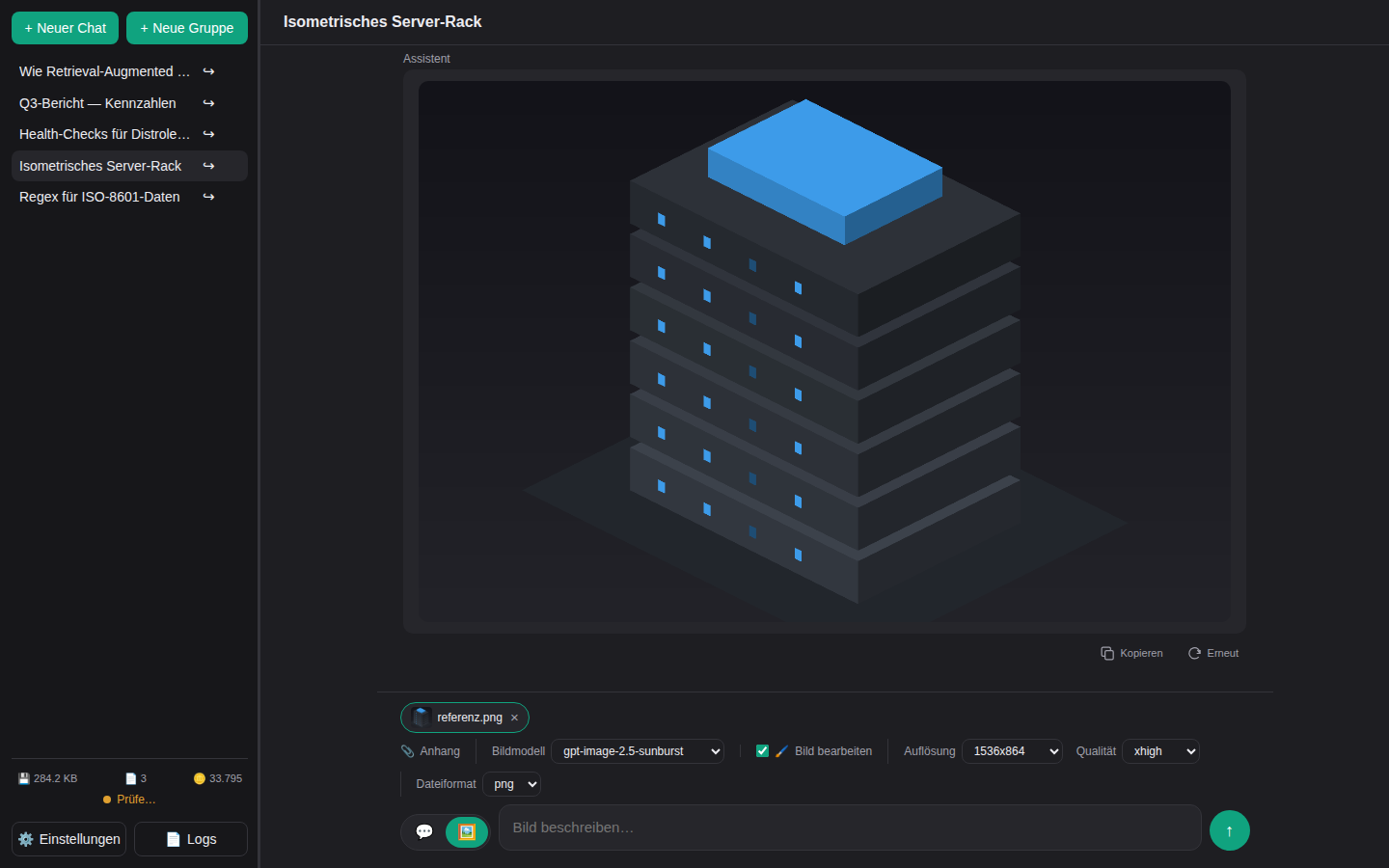
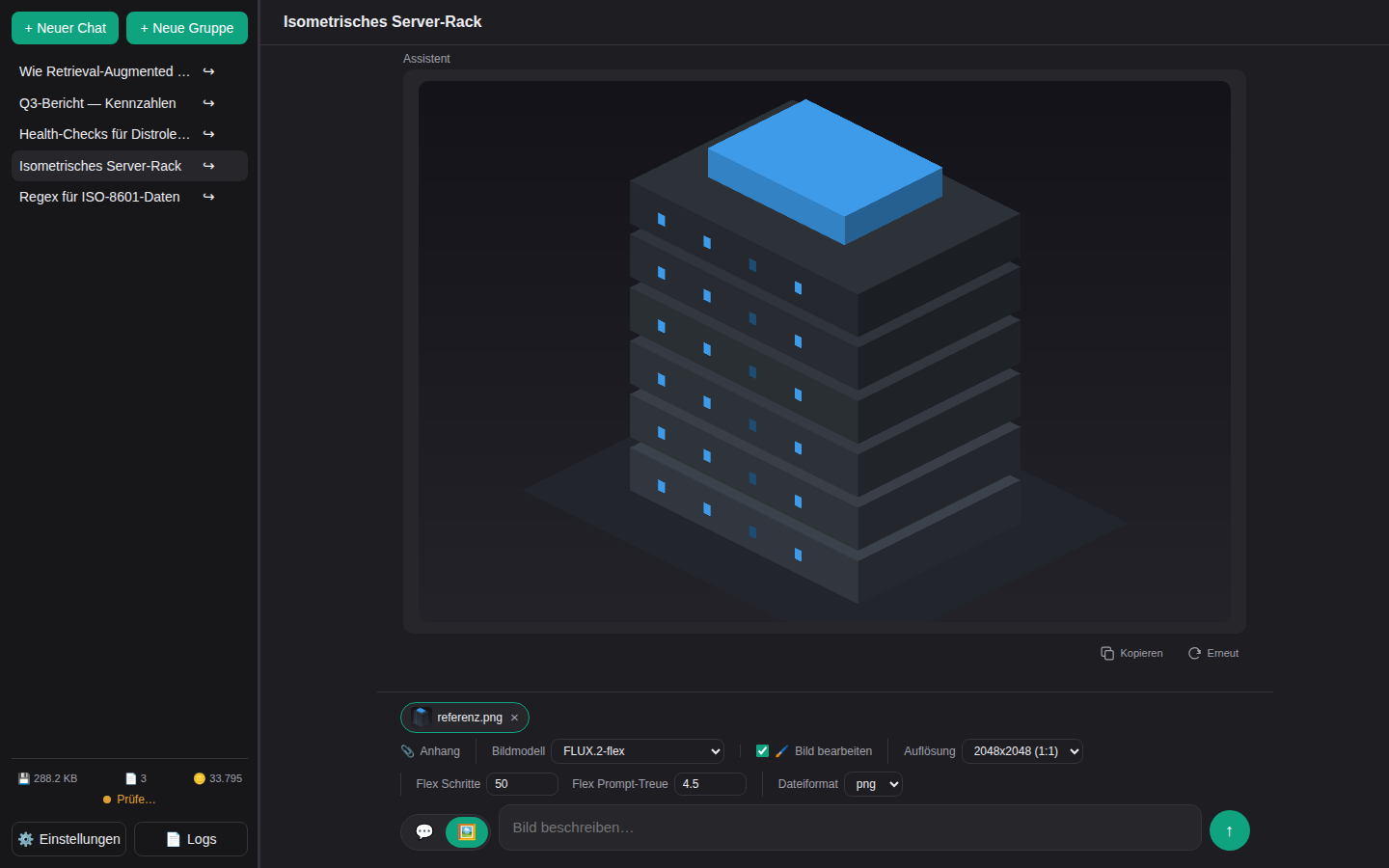
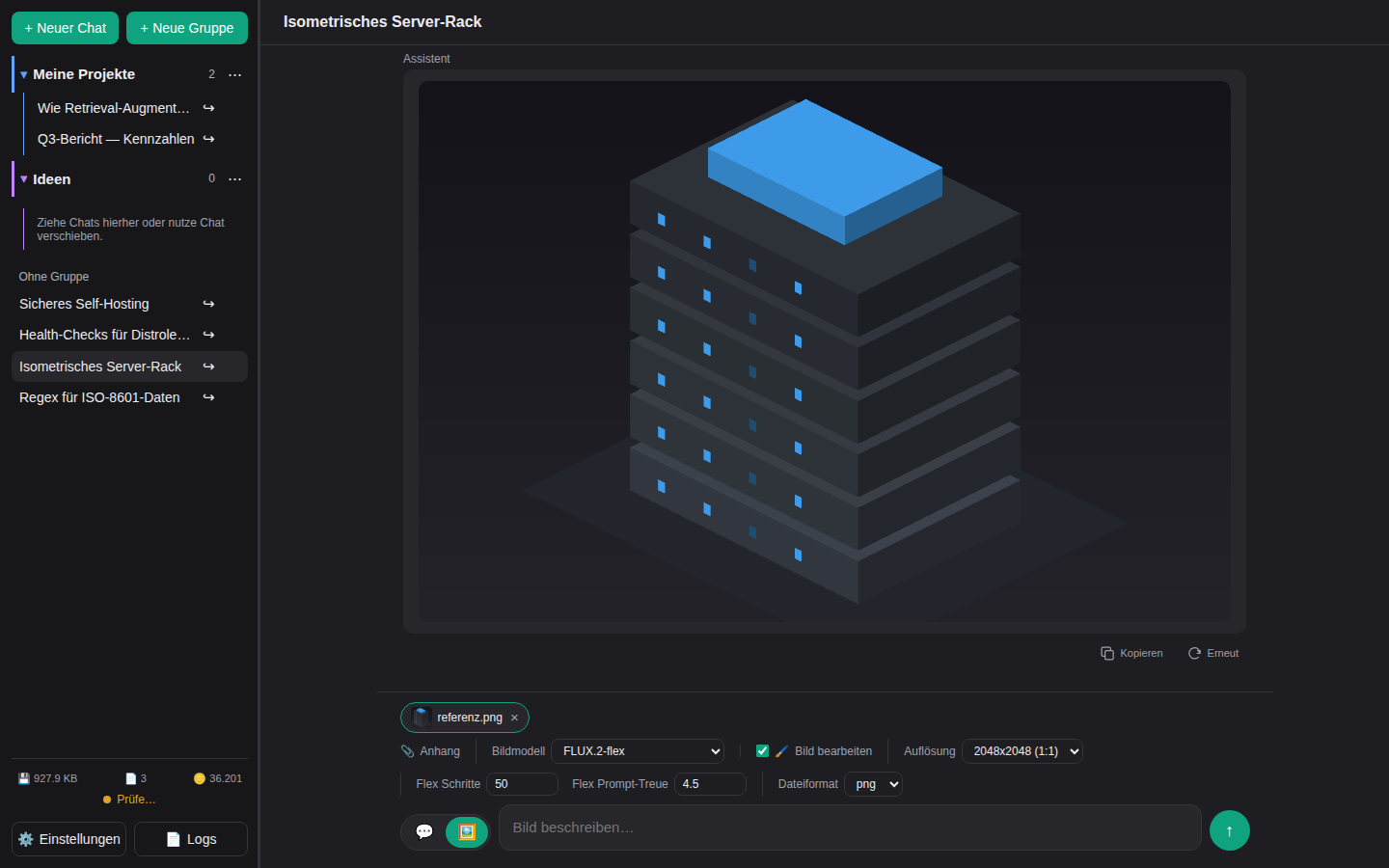
Optional image generation (🖼): the toggle switches the next message from a
chat answer to a generated image (for example, gpt-image-2.5-sunburst or FLUX.2-pro);
images are stored in the database and shown inline. In image mode an attached
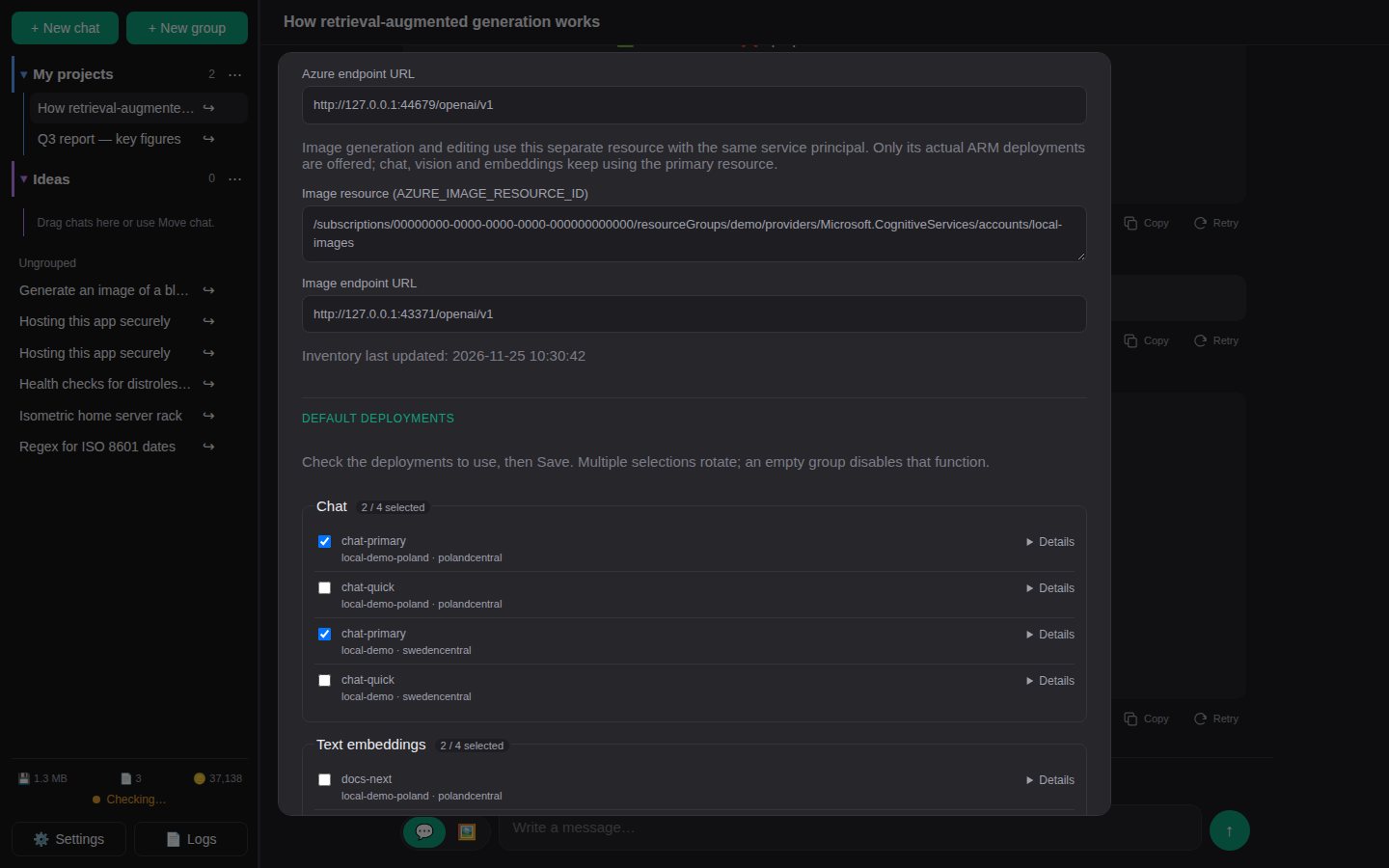
image turns the next prompt into an edit of that image. Image deployments
are configured in Settings
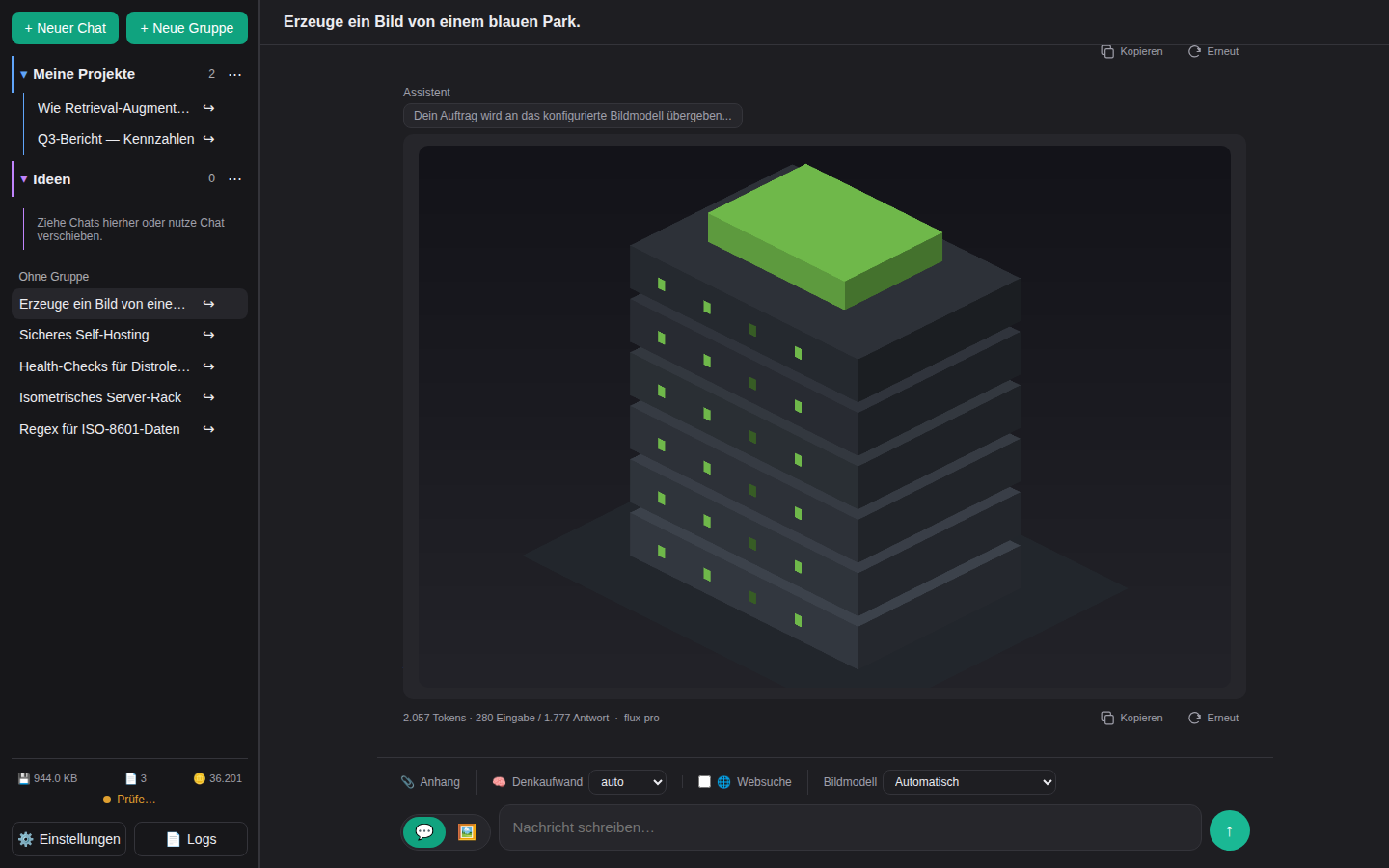
With an image model configured, explicit image requests in ordinary chat can
call the image generator automatically. Follow-up edits use the latest image;
ordinary answers stay with the chat model. These image calls incur usage
charges; manual image mode remains available.
The Image model selector shares the toolbar with Attach and Reasoning;
image parameters join the same toolbar in model-specific groups separated
by subtle dividers. Both modes use the same input styling; controls wrap
only when the available width requires it.
The selection is saved per chat and applies only
to image generation/editing, including the image tool in ordinary chat.
Automatic cycles the enabled image pool; an explicit model cycles only
its activated regional replicas. Unavailable saved choices are shown and
rejected, never silently replaced.
Browser tabs use AI-UI – page title, including automatically updated
chat titles, statistics and logs.
Documents and images are bound to their chat and are removed together with it
(including their embeddings)
Settings dialog in the UI (language, deployment defaults, system prompt,
temperature, default reasoning effort). Manual mode also exposes endpoints
and API versions; Foundry mode shows the resource and discovered endpoint
read-only
Explicit, staged document reindexing when changing the embedding configuration
in either mode, with progress and a cost warning; a failed rebuild leaves the
previous index intact
User interface available in English and German, switchable in the settings
Readiness/connection check: uploads are only possible once storage and the
embedding endpoint are verified; checked at start-up and periodically in the
background, with a status indicator in the sidebar
Credentials exclusively through environment variables: API keys in manual
mode, or a tenant/client/client-secret identity in Foundry mode
Persistence in SQLite under the mounted data path
Single binary, single Docker image (distroless, non-root), designed to run
behind a reverse proxy such as Traefik
Screenshots
Captured automatically from the demo instance on every change - no manual editing.
English interface
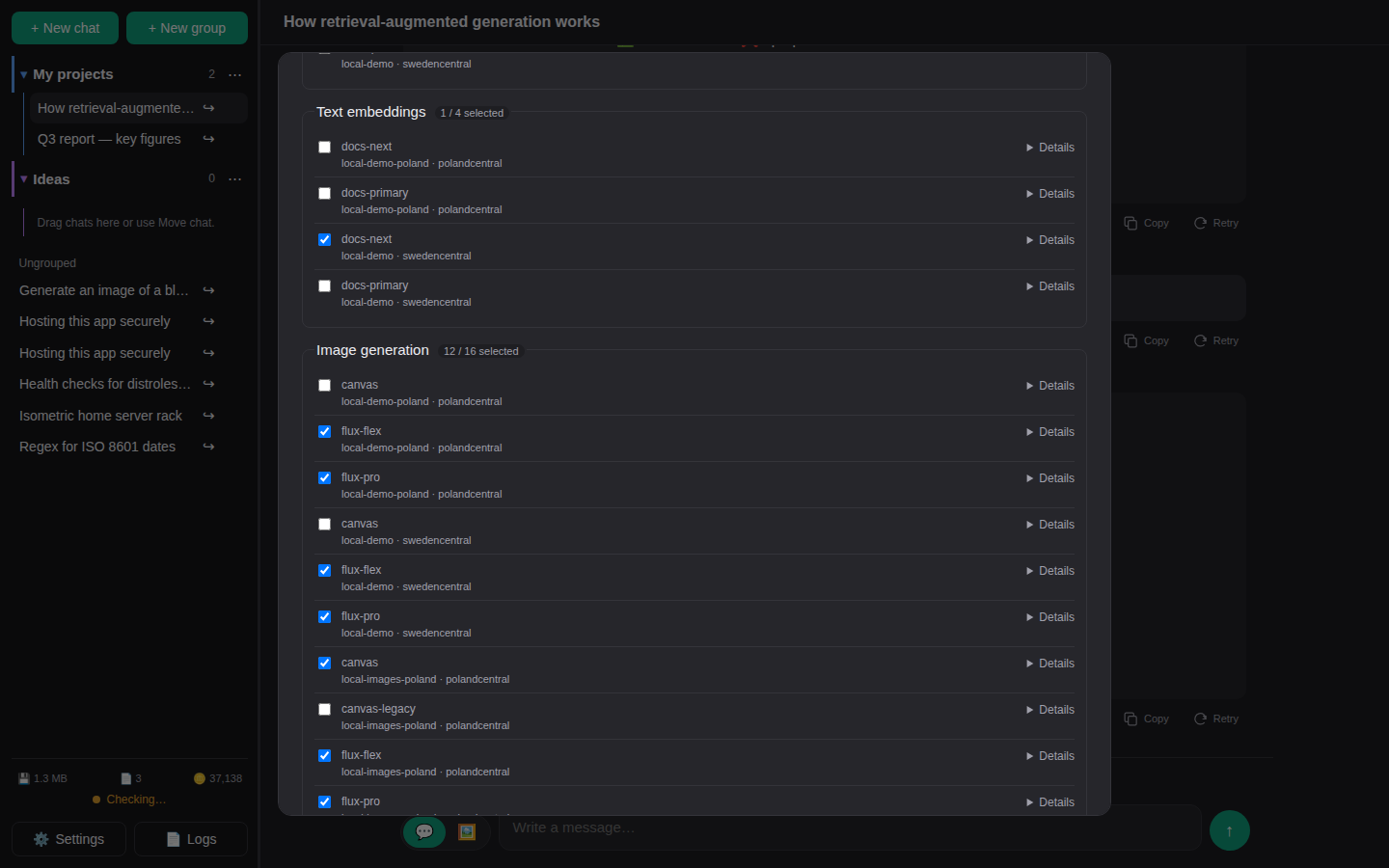
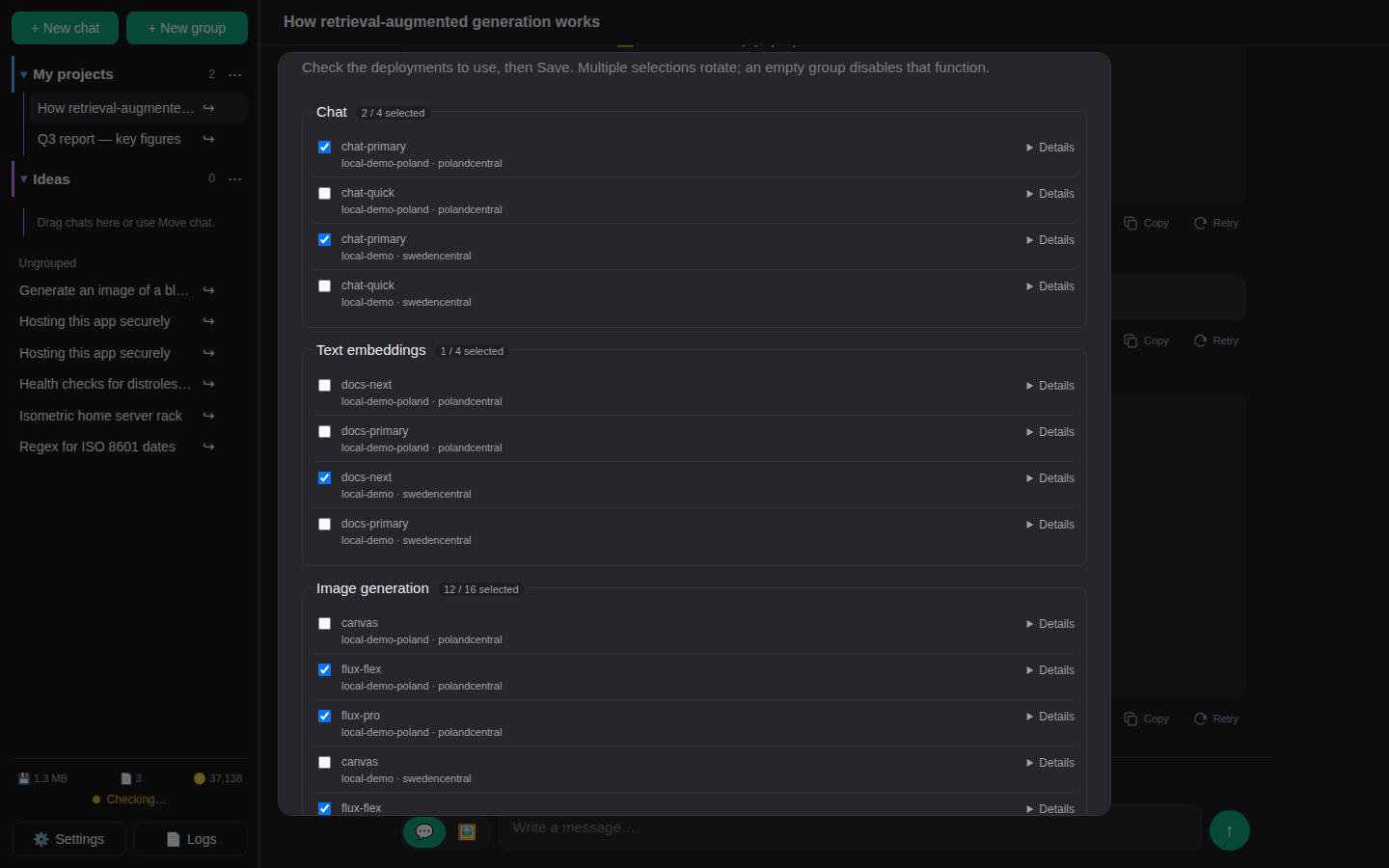
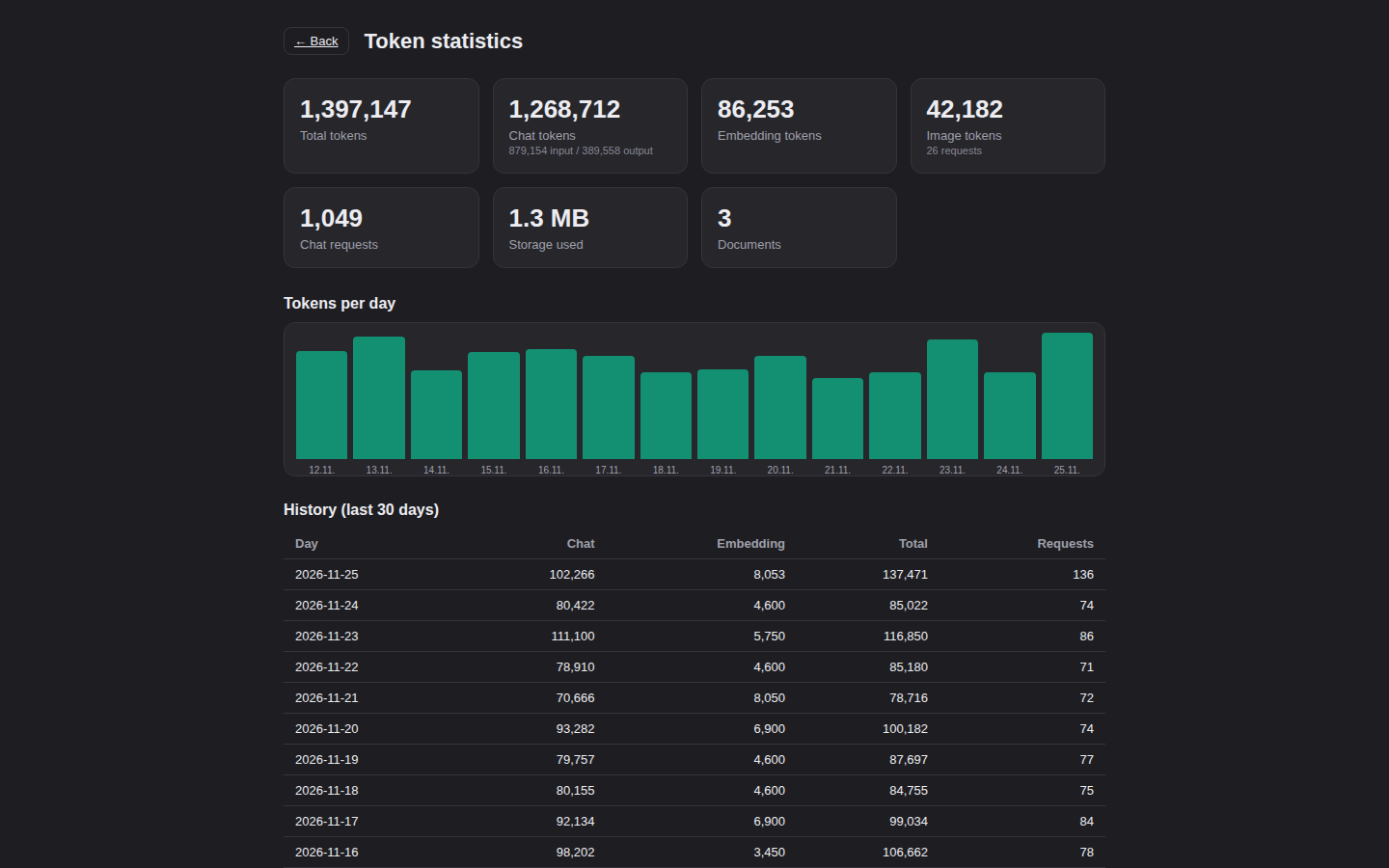
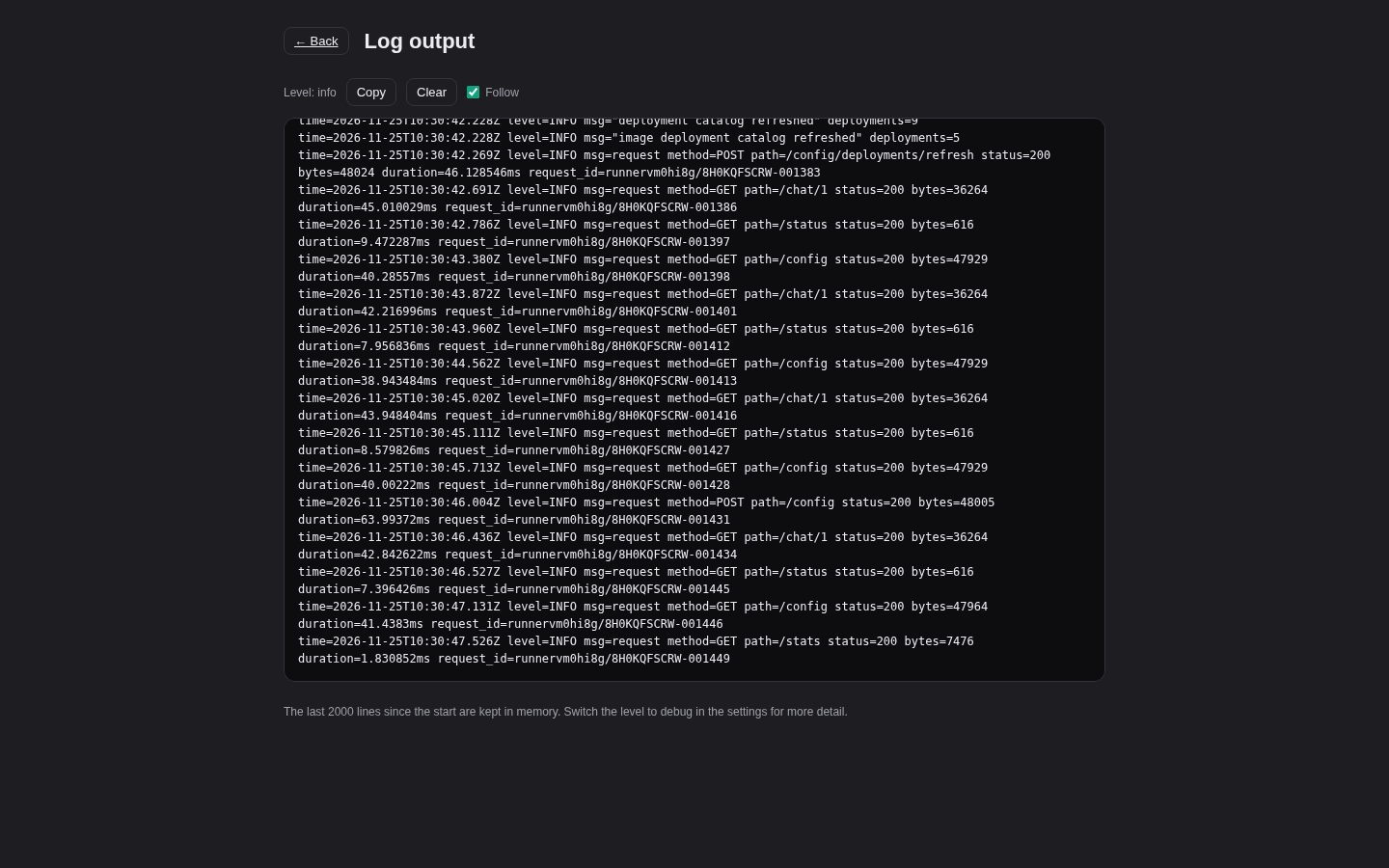
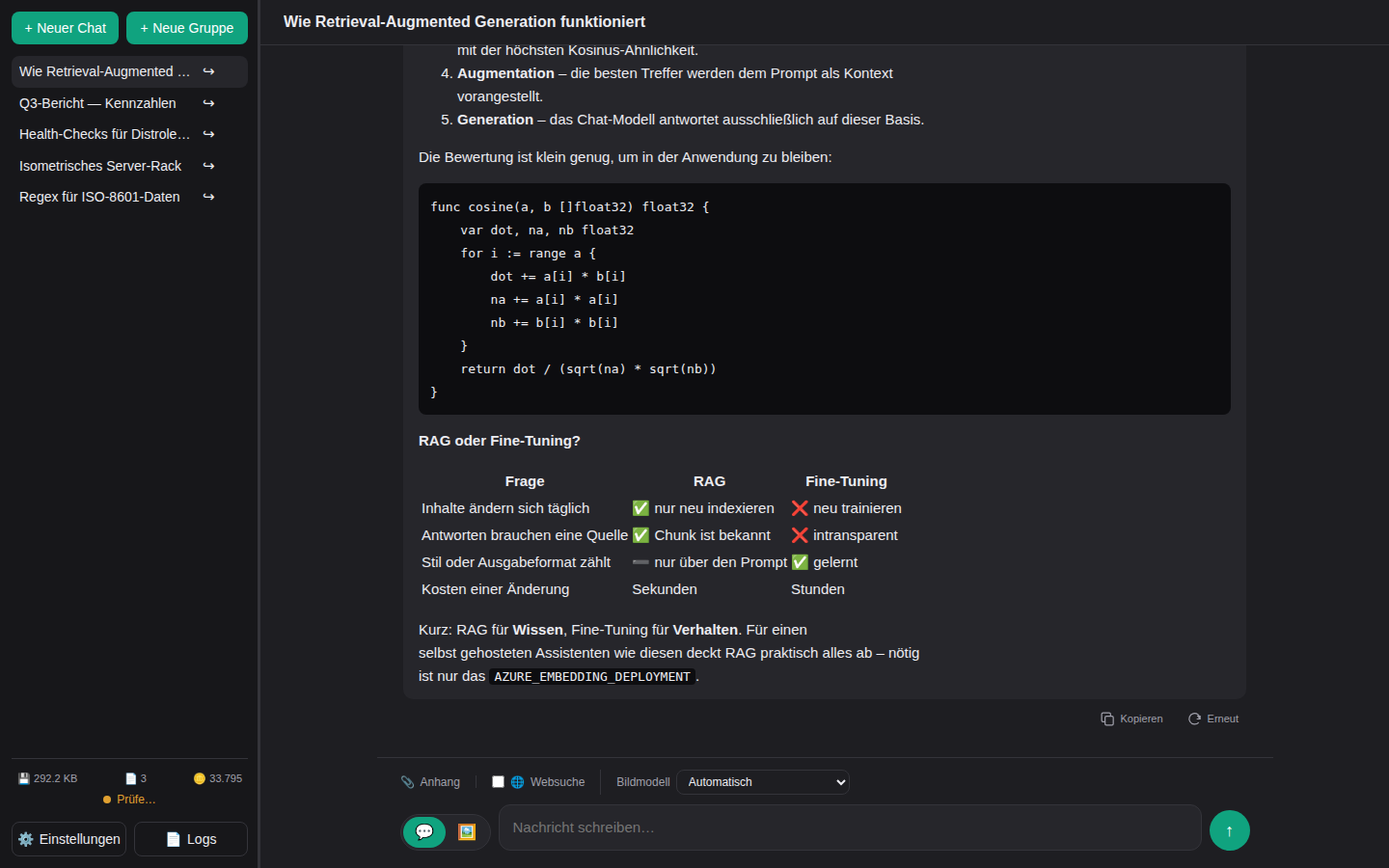
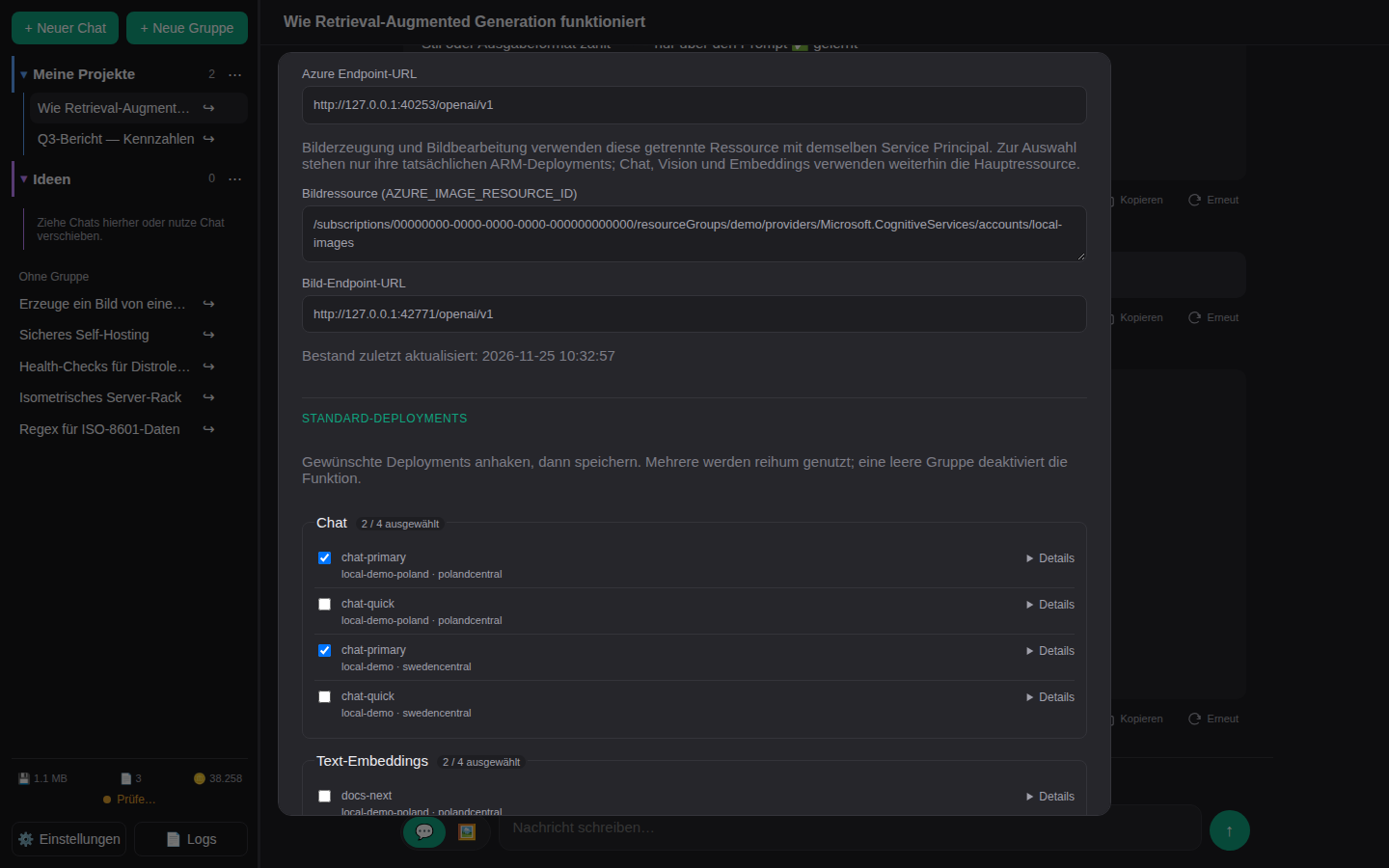
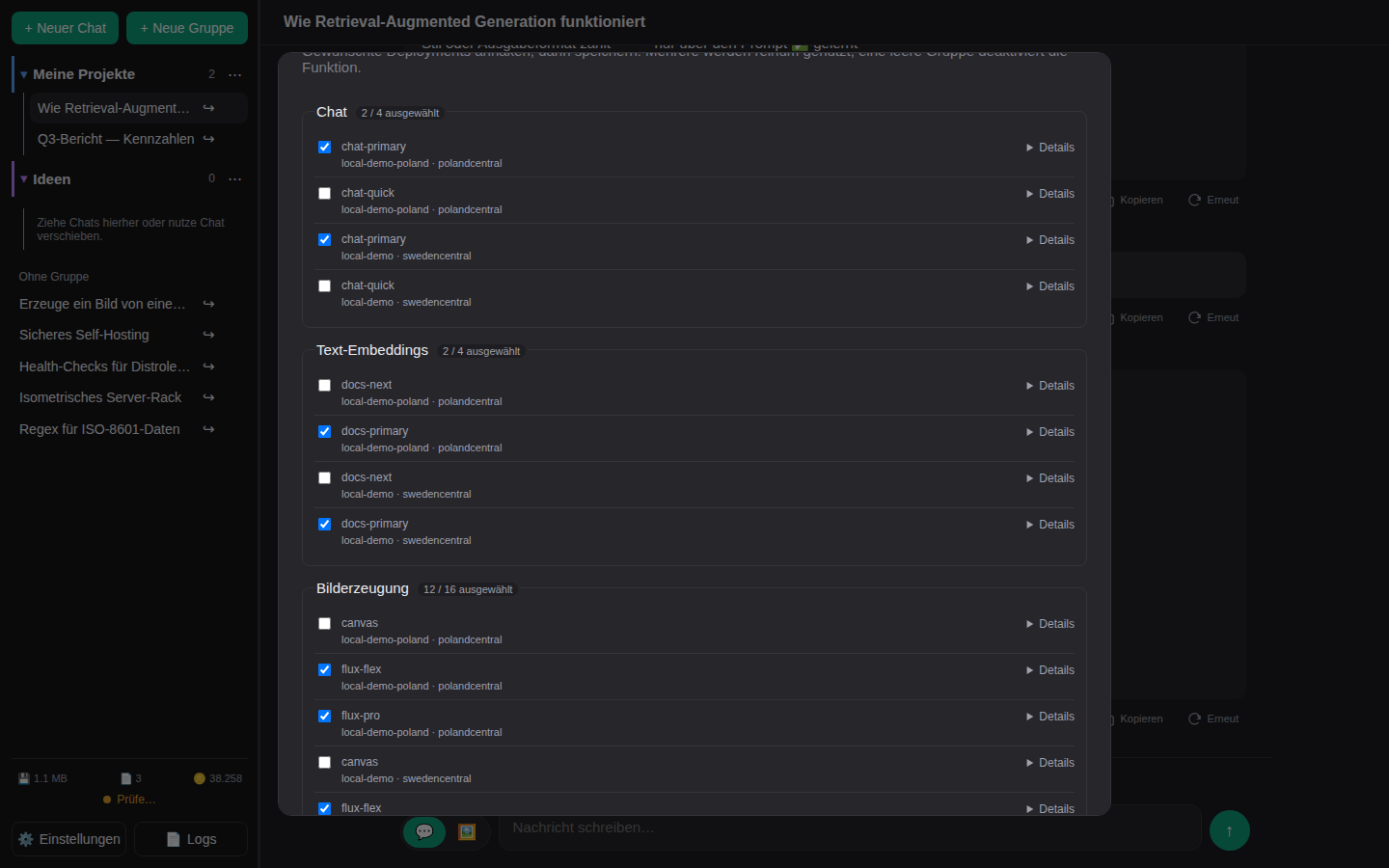
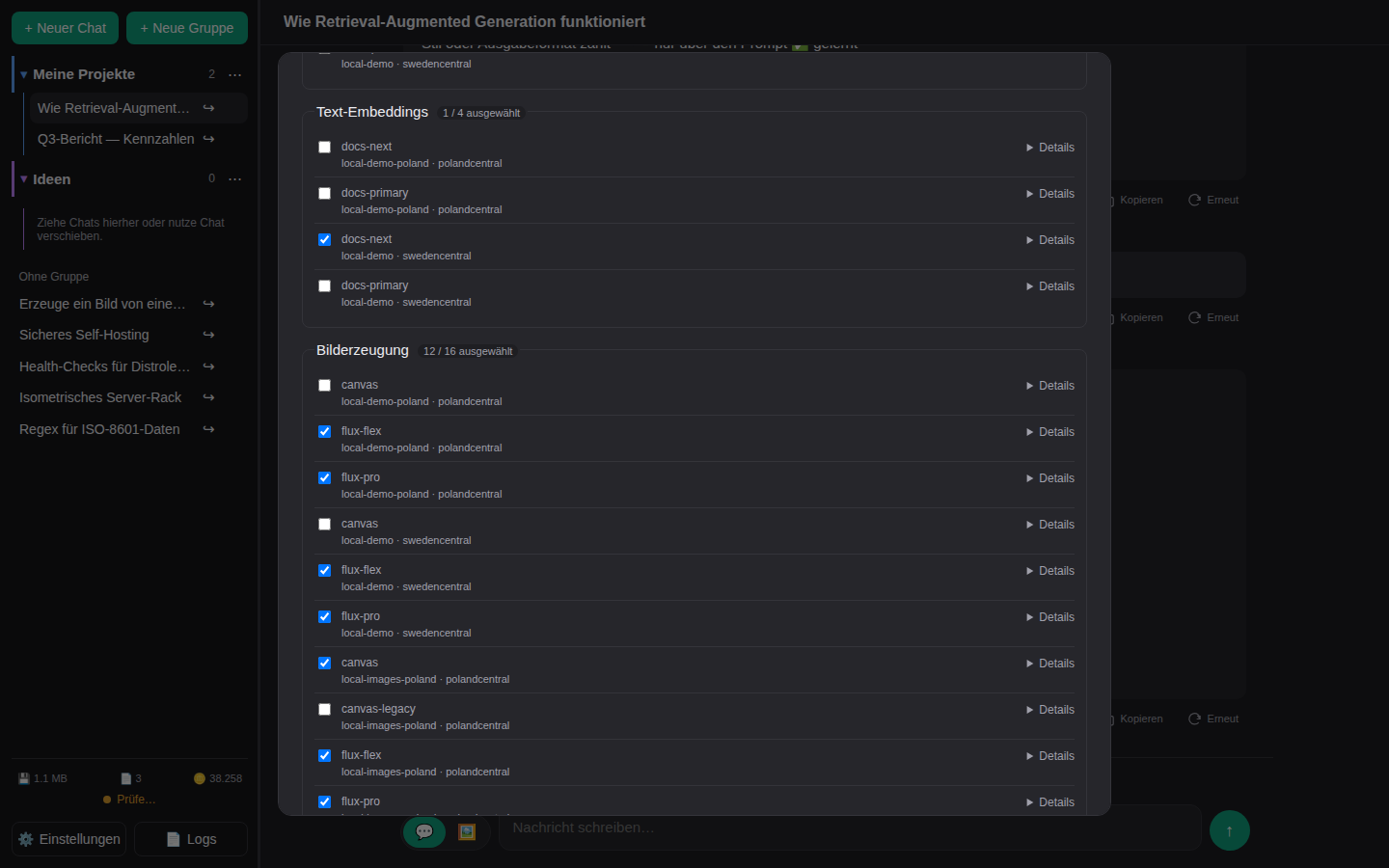
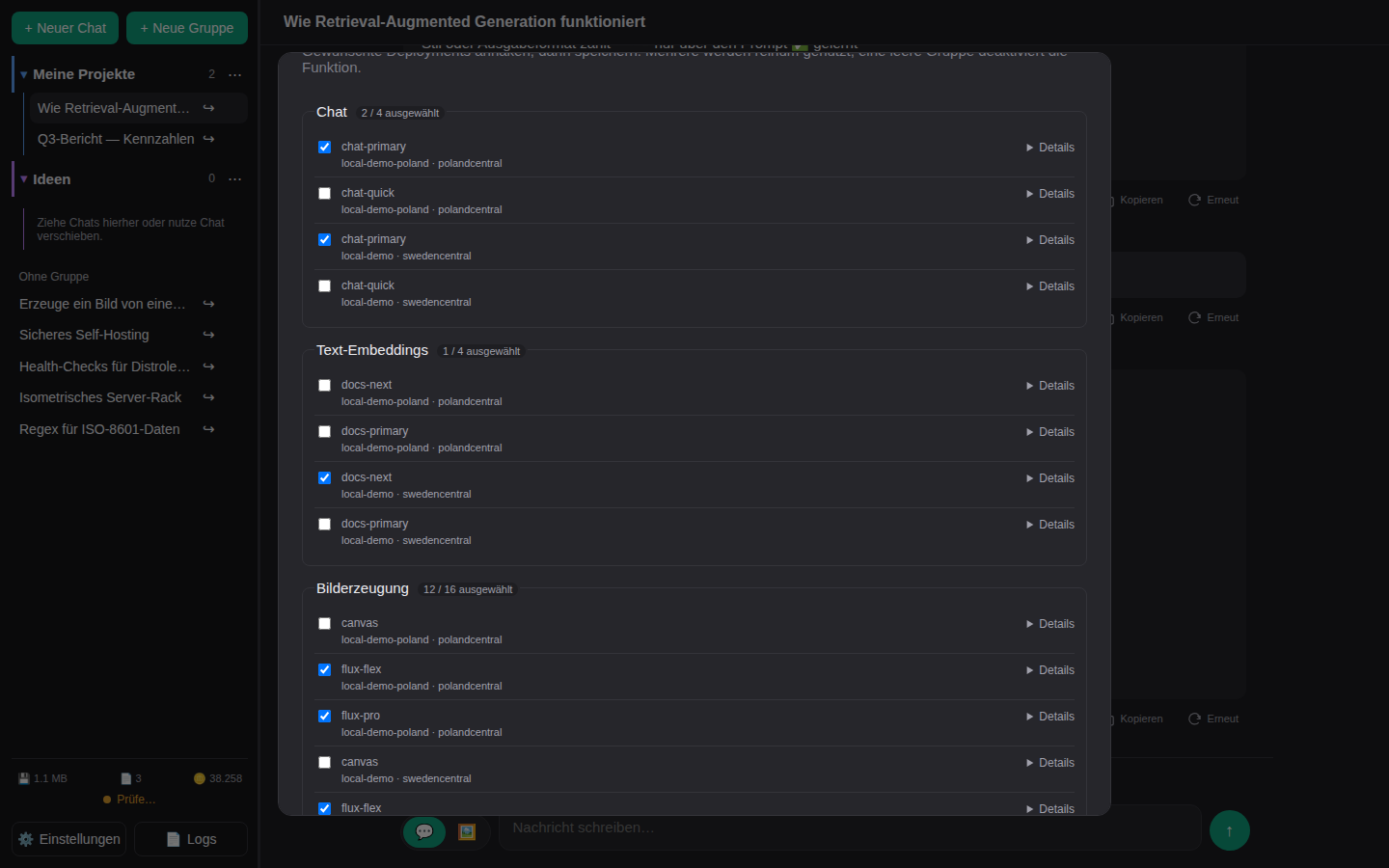
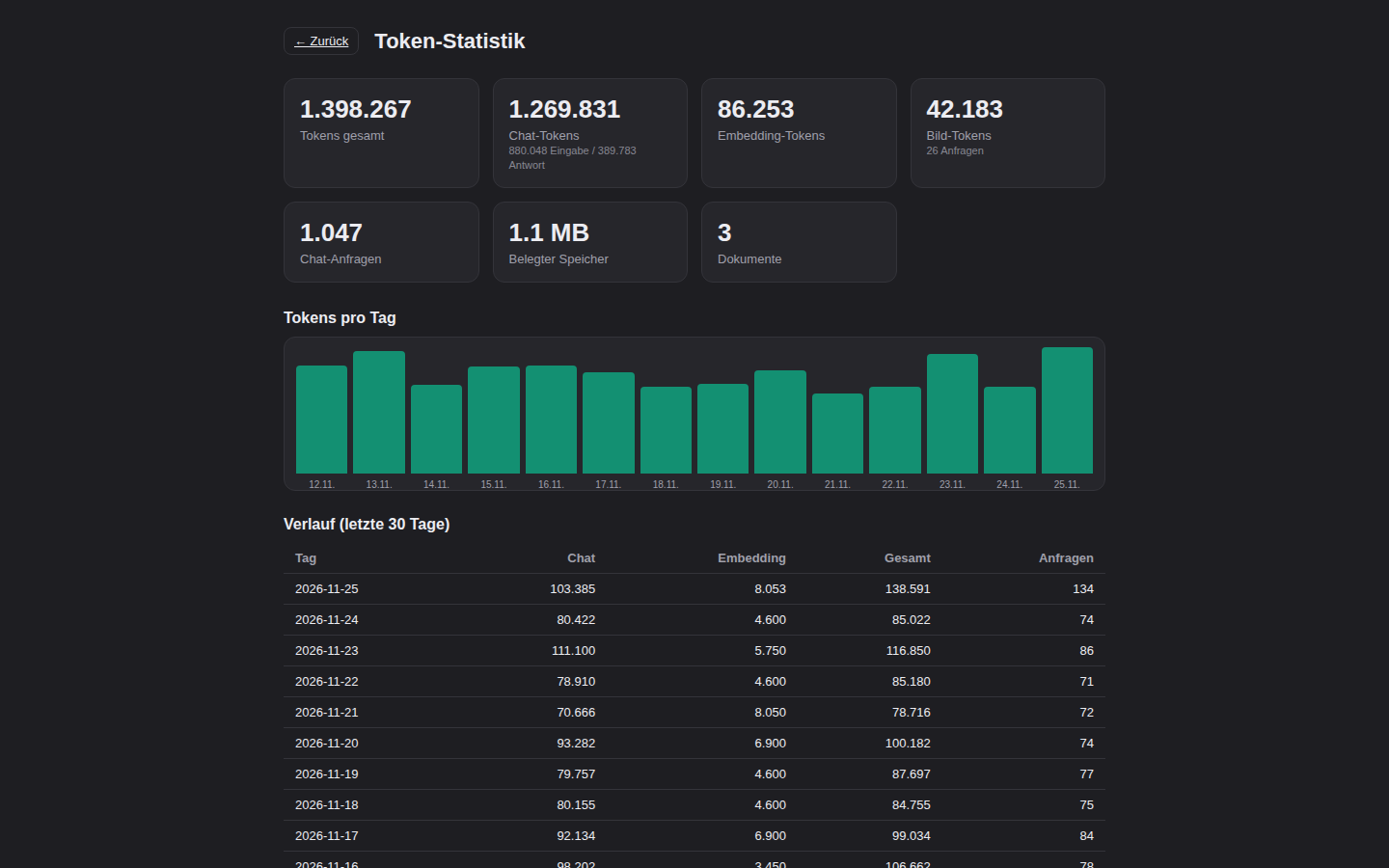
Sunburst and FLUX.2 ProKeep two image models in the enabled pools. Sunburst has independent resolution and quality controls, including xhigh and max; regional replicas rotate in the background.FLUX.2 model and image controlsChoose an image model in the shared input toolbar. Resolution, format, steps and guidance are separated by dividers and wrap when needed; only activated regional replicas are used.Adjust the sidebar widthDrag the right edge to give chat titles more room. The width is saved in this browser; double-click resets it. Mobile navigation stays unchanged.Chat with Markdown answersConversations in the sidebar, a clear chat title, and answers rendered as sanitized Markdown including tables and code. Model defaults are managed in Settings.Copy inputs and answers with formattingCopy is available on every input and completed answer throughout the conversation. It preserves formatting without surrounding model or usage indicators.Organize chats in colored groupsNamed, collapsible groups keep chats in an indented tree. Drag a chat into a group or use the Move action; removing a group keeps its conversations.Send any previous question againRetry on an input or answer sends the original question as a new message with the current conversation and settings. Previous messages stay unchanged.Answers stream token by tokenThe answer arrives over server-sent events; the model used and the token usage are shown once the stream ends.Read without being pulled to the bottomScrolling upward pauses automatic following. New output stays below the viewport, and the completion indicator lets you jump back to the latest response.Documents as chat context (RAG)PDF, Word, Excel, PowerPoint, text and code are parsed, chunked and embedded next to the chat; the attachments stay visible above the input.Optional web searchWith the 🌐 toggle a request is enriched with current results from Tavily, Brave Search or a self-hosted SearXNG.Image generation and editingThe 🖼 mode turns the next message into a generated image; an attached image is edited instead of created from scratch.Image requests in ordinary chatThe chat model delegates an explicit image request to the configured image model. The result appears inline while the conversation stays in chat mode.Foundry deployment inventoryRefresh reads metadata for accounts in the configured resource groups. Canonical models and capabilities explain which deployment aliases are usable; the local demo needs no credentials.A separate resource for image modelsAZURE_IMAGE_RESOURCE_ID anchors existing image selections using the same identity. Additional accounts in its group are discovered without changing existing chat or embedding selections.Enabled providers for each operationChat, embeddings, images, image edits and vision each have a checkbox pool. Saved providers rotate cyclically; newly discovered endpoints remain disabled.Embedding changes require consentSaving a new embedding default does not relabel the old vectors. The staged rebuild requires explicit consent after showing corpus counts and an API cost warning.Cycle between enabled resourcesEnable multiple deployments per operation with checkboxes. Region, resource and model identify each endpoint; compatible embedding replicas share one vector space.Token statisticsPersisted usage per day and per model, including embeddings, images and the size of the data path.Live logThe last log lines in the browser, with a level filter - handy behind a reverse proxy without shell access.Phone layoutOn a narrow viewport the sidebar turns into an off-canvas drawer behind the ☰ button, so the conversation keeps the full width.
German interface
Sunburst und FLUX.2 ProZwei Bildmodelle in den aktivierten Pools behalten. Sunburst bietet eigene Auflösungs- und Qualitätsregler einschließlich xhigh und max; regionale Replikate wechseln im Hintergrund.FLUX.2-Modell und BildeinstellungenDas Bildmodell in der gemeinsamen Eingabe-Werkzeugleiste wählen. Auflösung, Format, Schritte und Prompt-Treue sind durch Linien getrennt und brechen bei Bedarf um; nur aktivierte regionale Replikate werden verwendet.Breite der Seitenleiste anpassenZiehe den rechten Rand, um Chattiteln mehr Platz zu geben. Die Breite wird in diesem Browser gespeichert; ein Doppelklick setzt sie zurück. Das mobile Menü bleibt unverändert.Chat mit Markdown-AntwortenUnterhaltungen in der Seitenleiste, ein klarer Chat-Titel und Antworten als bereinigtes Markdown inklusive Tabellen und Code. Modellvorgaben stehen in den Einstellungen.Eingaben und Antworten formatiert kopierenKopieren steht an jeder Eingabe und abgeschlossenen Antwort im gesamten Verlauf zur Verfügung. Die Formatierung bleibt ohne Modell- oder Verbrauchsanzeige erhalten.Chats in farbigen Gruppen ordnenBenannte, aufklappbare Gruppen zeigen Chats eingerückt an. Verschiebe sie per Drag-and-drop oder über die Verschieben-Aktion; beim Entfernen einer Gruppe bleiben die Chats erhalten.Beliebige frühere Fragen erneut sendenRetry an einer Eingabe oder Antwort sendet die ursprüngliche Frage als neue Nachricht mit dem aktuellen Verlauf und den aktuellen Einstellungen. Bisherige Nachrichten bleiben unverändert.Lesen ohne automatische Scroll-SprüngeNach oben scrollen pausiert das automatische Folgen. Neue Ausgabe bleibt unterhalb des sichtbaren Bereichs; der Abschluss-Hinweis führt zurück zur neuesten Antwort.Bilder erzeugen und bearbeitenDer Modus 🖼 macht aus der nächsten Nachricht ein erzeugtes Bild; ein angehängtes Bild wird stattdessen bearbeitet.Bildaufträge direkt im ChatDas Chat-Modell übergibt einen ausdrücklichen Bildauftrag an das konfigurierte Bildmodell. Das Bild erscheint direkt in der Unterhaltung; der Chatmodus bleibt aktiv.Foundry-Deployment-InventarAktualisieren liest Konten in den eingestellten Ressourcengruppen. Kanonische Modelle und Fähigkeiten zeigen, welche Deployment-Aliase nutzbar sind; die lokale Demo braucht keine Zugangsdaten.Eine getrennte Ressource für BildmodelleAZURE_IMAGE_RESOURCE_ID verankert bestehende Bildauswahlen mit derselben Identität. Weitere Konten der Gruppe werden gefunden, ohne bestehende Chat- oder Embedding-Auswahlen zu ändern.Aktive Anbieter je AufgabeChat, Embeddings, Bilder, Bildbearbeitung und Vision haben eigene Checkbox-Listen. Gespeicherte Anbieter wechseln reihum; neu gefundene Endpoints bleiben deaktiviert.Embedding-Wechsel mit BestätigungEin neuer Embedding-Standard ändert bestehende Vektoren nicht. Der getrennte Neuaufbau erfordert eine Bestätigung mit Dokumentanzahl und Hinweis auf API-Kosten.Aktive Ressourcen reihum nutzenCheckboxen aktivieren mehrere Deployments je Vorgang. Region, Ressource und Modell kennzeichnen den Endpoint; kompatible Embedding-Replikate teilen einen Vektorraum.Token-StatistikDauerhaft gespeicherter Verbrauch pro Tag und Modell, inklusive Embeddings, Bildern und Größe des Datenpfads.
Try it yourself
The same demo the screenshots come from runs locally without any API key:
git clone https://github.com/daknoblo/ai-ui.git
cd ai-ui
go run ./cmd/demo -foundry -separate-images   # http://localhost:8080